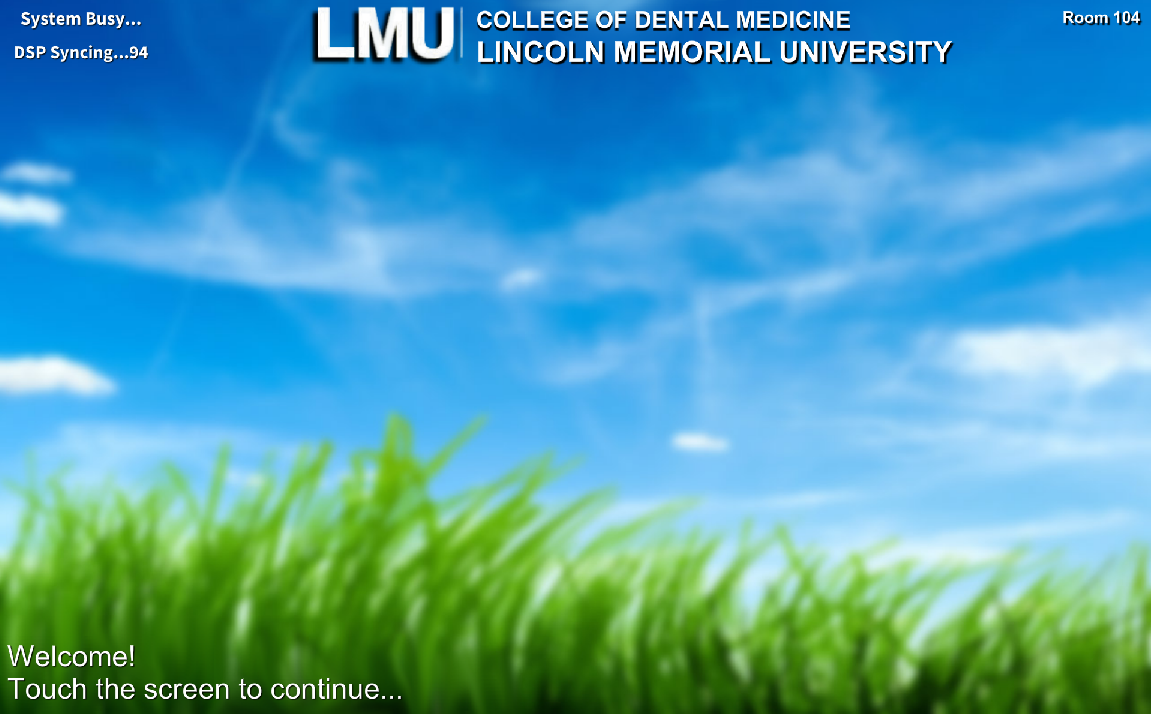
To turn the system on press and hold anywhere on the touch panel's home screen pictured below:
Then select the source you want to send to the screens from the bottom row of options:
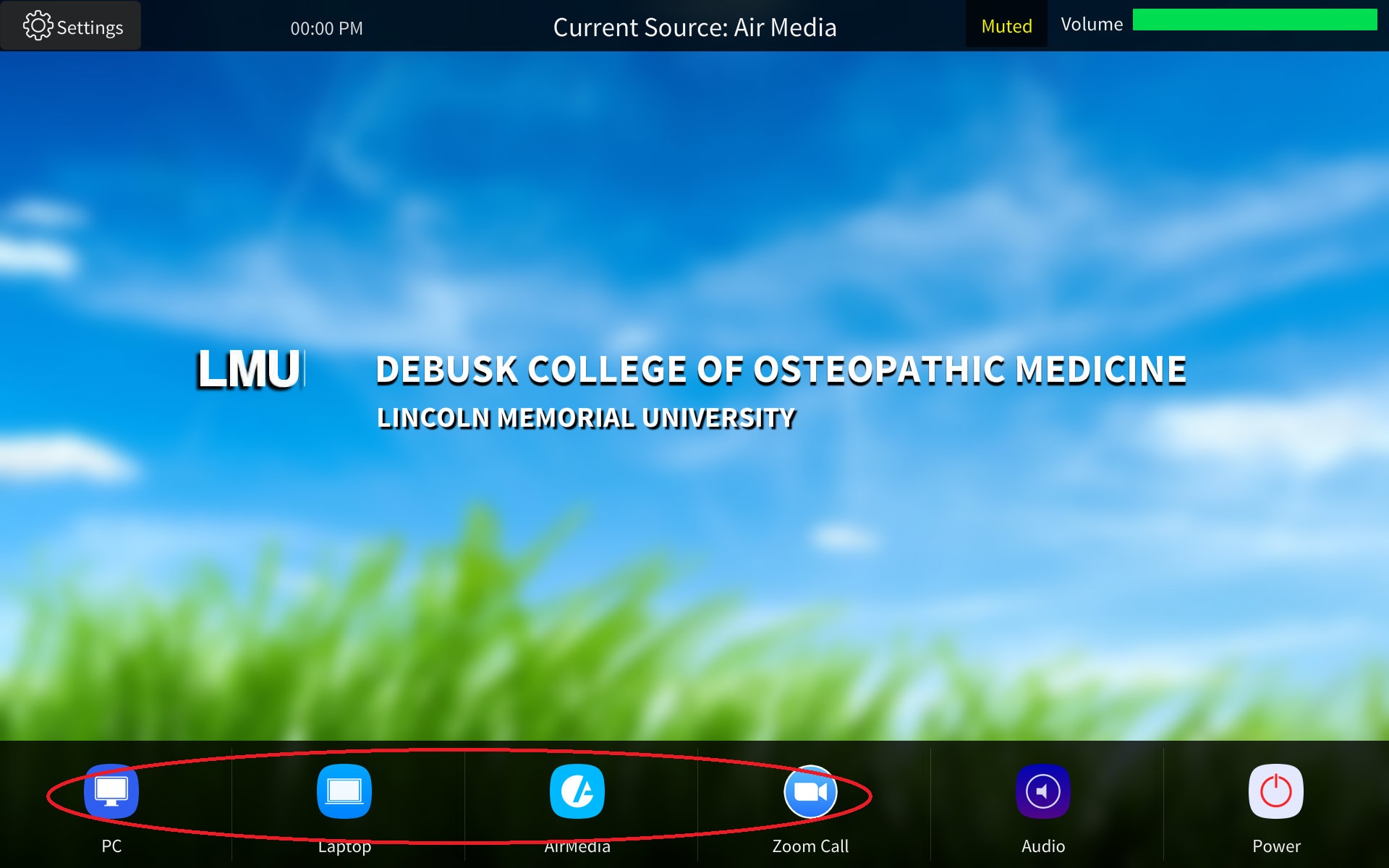
Select "PC" to send the Podiums provided computer.
Select "Laptop" to connect a Laptop to the provide wired connection on the podium.
Select "AirMedia" to send a device image wirelessly. Then follow the on screen instructions
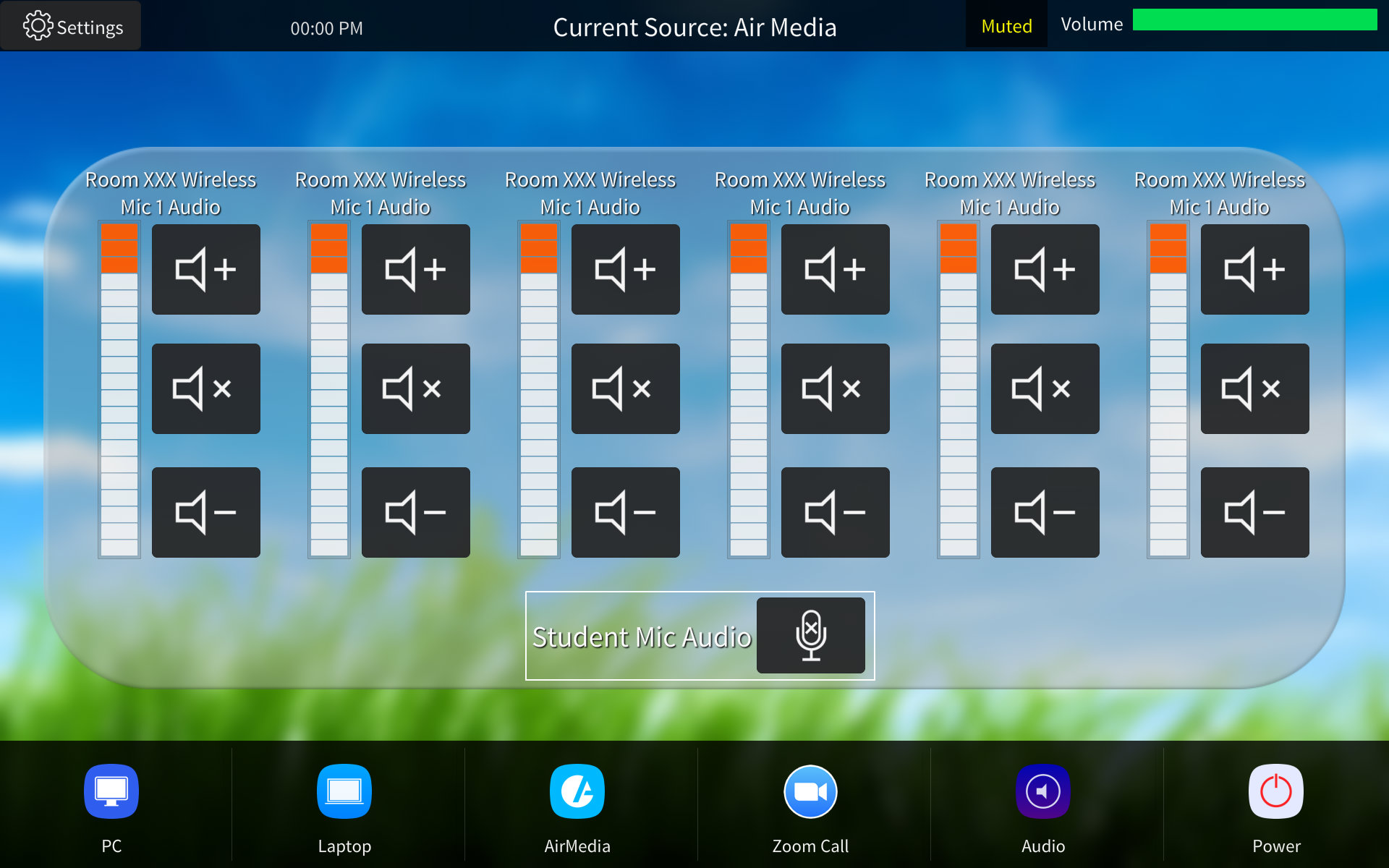
You can adjust audio levels or mute mica by selecting the purple Audio icon shown below:

Once selected. This will take you to a page where all the audio options for the room will be listed. You can turn the corresponding volume up or down denuding on your needs. Please not the volume controls will be different for each room as each room as different technology. An Example is below:
***Please note for Zoom Capable rooms the following instructions also apply***
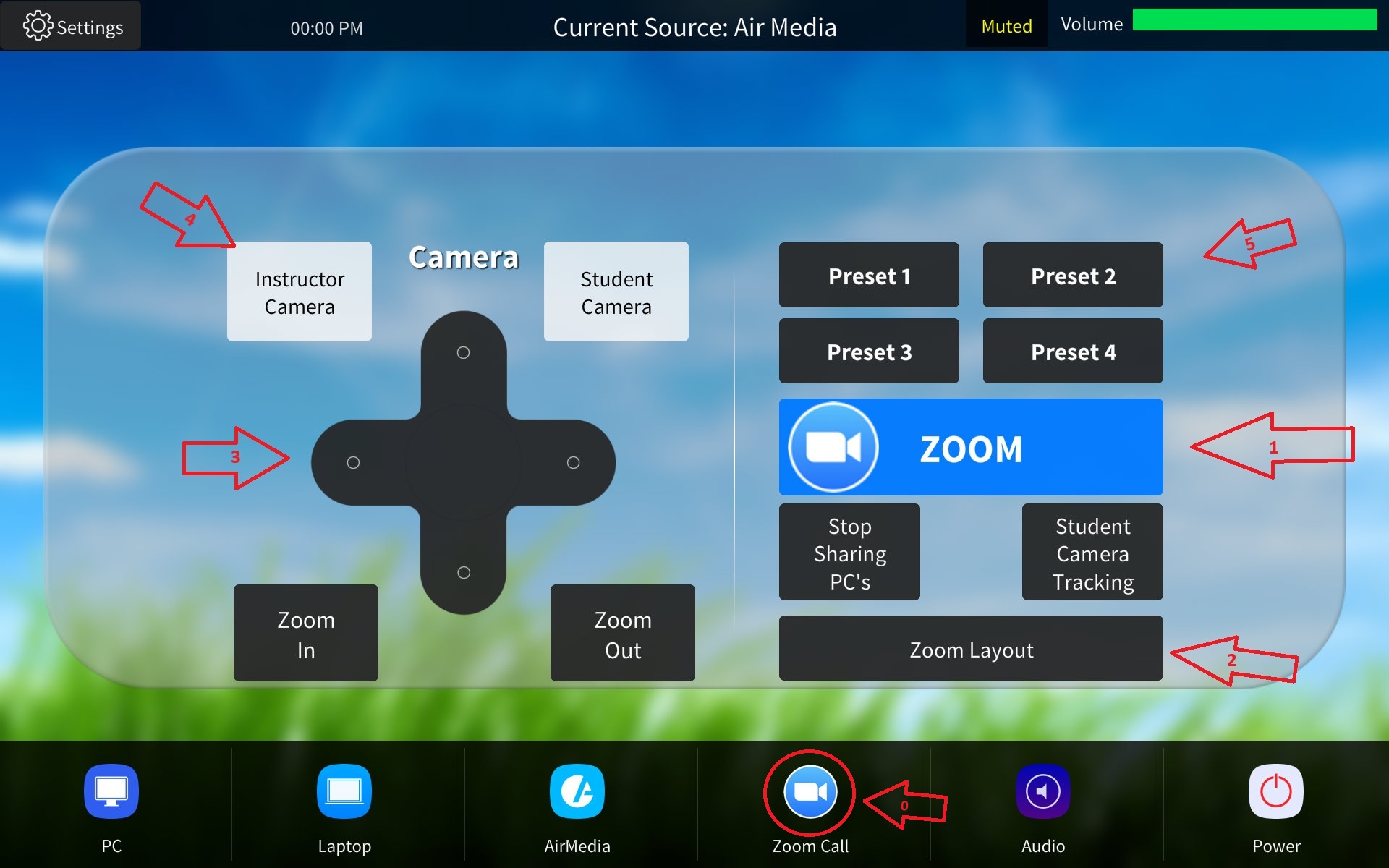
0) You can press the blue Zoom Icon to route Zoom to the screen(s).
1) Pressing the large blue Zoom Square on the center of the page will take you to the Zoom interface. From there you can connect to the Zoom.
2)Pressing the "Zoom Layout" button only works in rooms with multiple screens. While in a Zoom if your camera is routed to on screen and your computer another this button will allow you to chose which screens will display which.
3) These are the camera controls. You can move the camera in any direction as well as zoom in/out.
4) If there are multiple camera in a room these white buttons will allow you to chose which ones are going to show up in Zoom.
5) These are the camera presets. By pressing these buttons the cameras will automatically go to a pre-saved location. If you want to save a new location just move the camera to the desired location using the on-screen directional pad then hold down one of the pre-set buttons for five seconds. That preset will no be save. Please be aware pre-set one is the default for the room so if you save over it the camera will boot up to that location overtime the room starts.
If you are in the Zoom interface mention in step 2 it will look like the screen below:
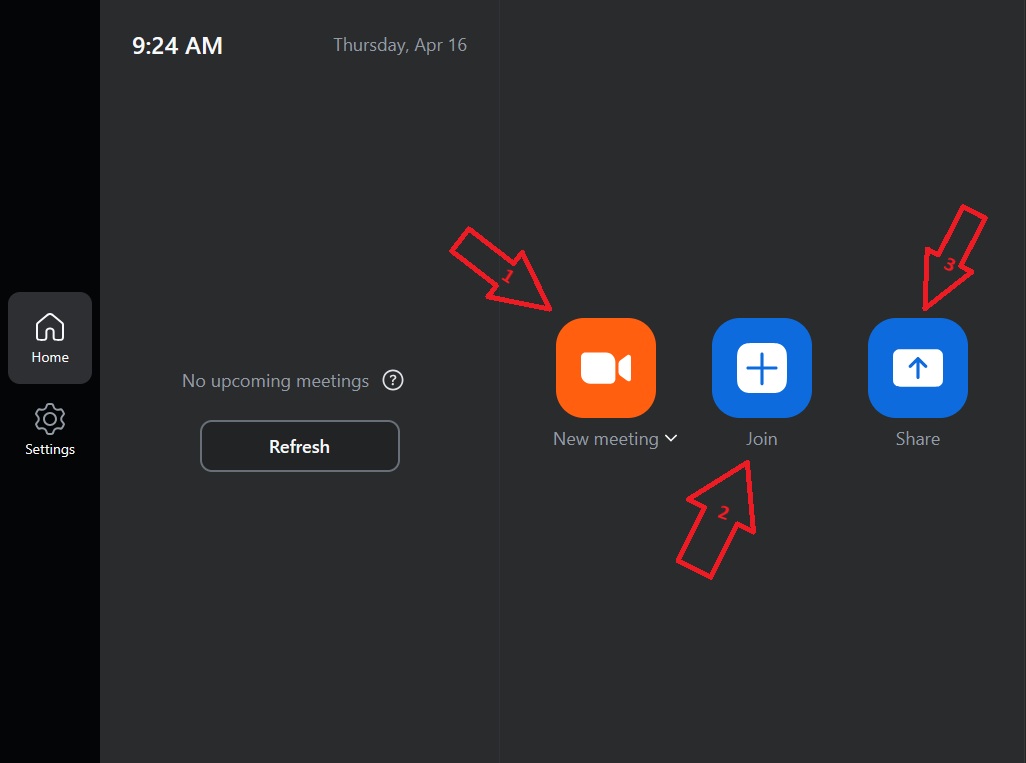
1) Pressing "1" will allow you to start a Zoom meeting using the room as a host. You will then need to share the rooms meeting ID with any other participants.
2) Pressing "2" will allow you to join a a Zoom meeting that has already been set up. This is for a meeting that you already have a meeting ID for. You would select "Join". Then the meeting ID you have.
*3) Is only used when you want to share a computer screen to the room using Zoom. This is not to host an actual meeting.
Once you are in a meeting you will be presented with the following screen:
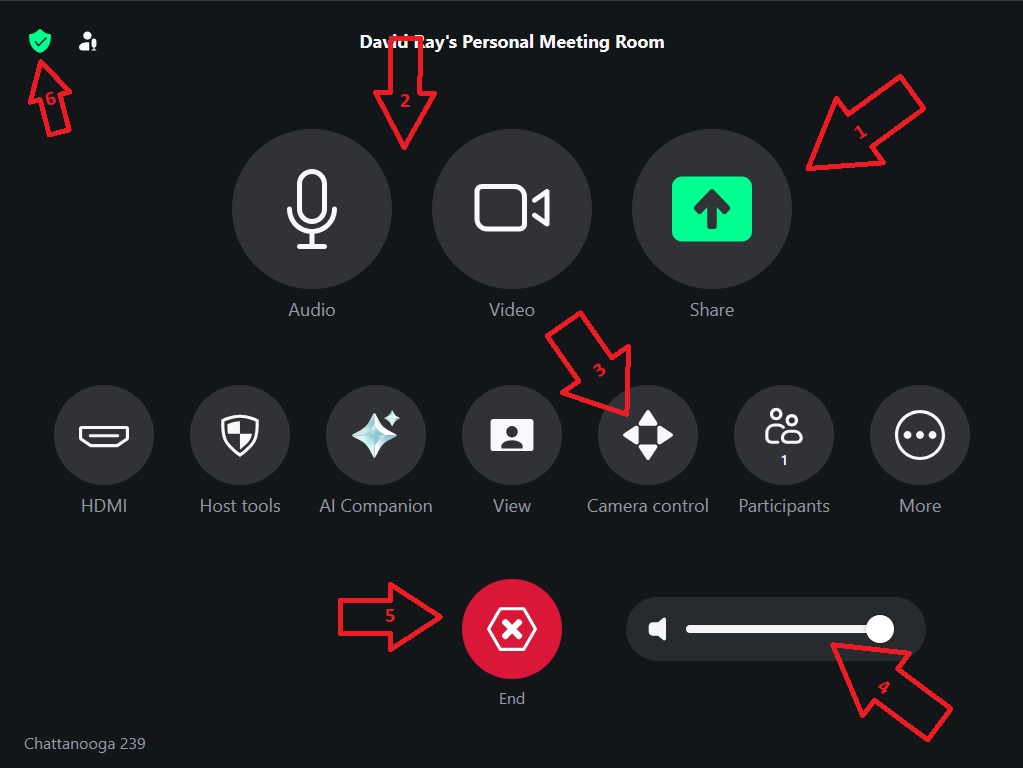
1) By pressing this button you share the rooms computer to Zoom. Allowing the far-end to see what is on your computer.
2) The "Audio" and "Video" buttons can mute audio and camera signals to Zoom.
3) The "Camera Control" button will take you to a screen where you can control the in room camera.
4) This is a volume meter. It will ONLY control the volume of how loud the far-end zoom participants sound in the room.
5) To leave or end the meeting press the big red "x".
6) Additional meeting info can be found in the top left corner by pressing the green shield icon.
