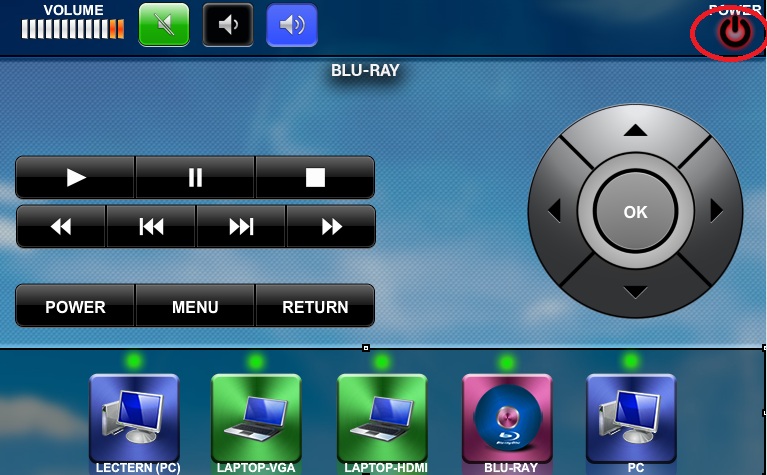
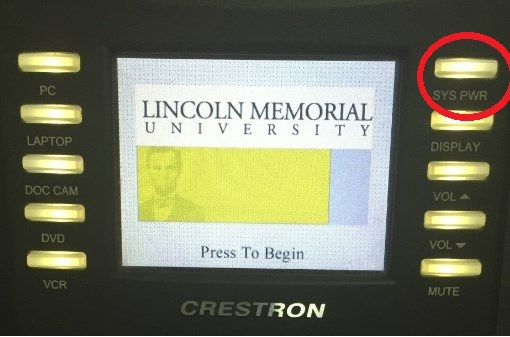
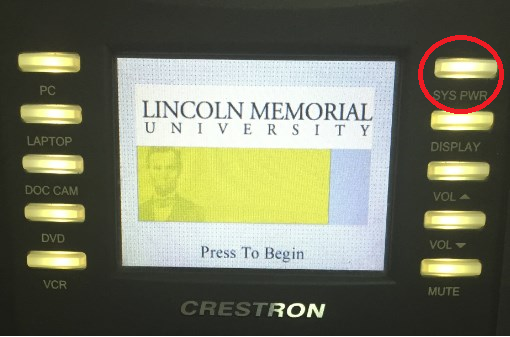
To use the podium computer, use the touch panel located on the podium. Press the "SYS PWR" button on the top right of the touch panel.
*Once this button is pressed the projector will power on and the screen(s) will
descend from the ceiling.
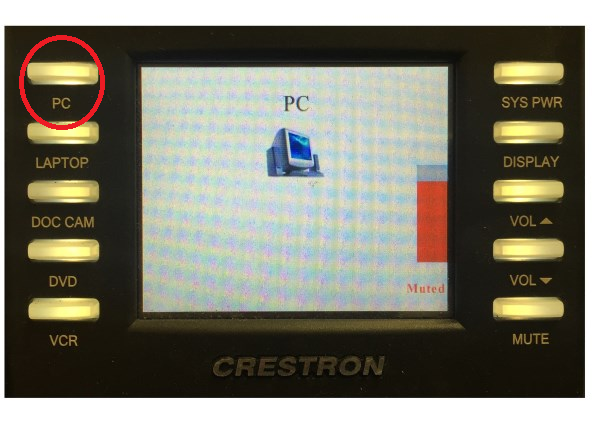
Press the PC button located below the power button to send the podium PC to the screen or if you are using a laptop, plug the cables in the podium to it and press the laptop button located on the left of the touch panel.
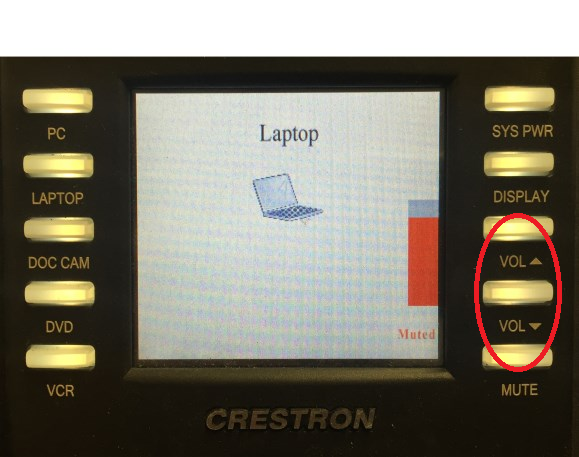
The volume controls are on the bottom right of the touch panel. You may have to turn the volume up with the buttons to hear the audio from the selected source.
To shutdown the system, please press the "SYS PWR" button located on the top right of the touch panel. *The same button used to power on.
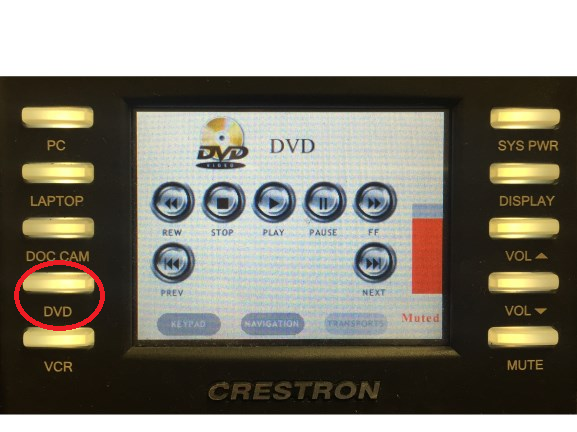
To play a DVD video, please press the DVD button located on the bottom left side of the touch panel. There are playback buttons on the touch screen to play, stop, and pause the video.
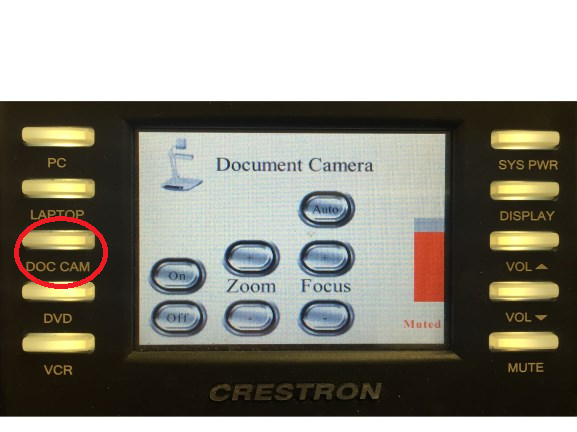
To use the Document Camera, please press the Doc Cam button located on the left side of the touch panel. The screen will display a power button and zoom buttons for the camera. The camera is located to the right of the podium in a pull out drawer.
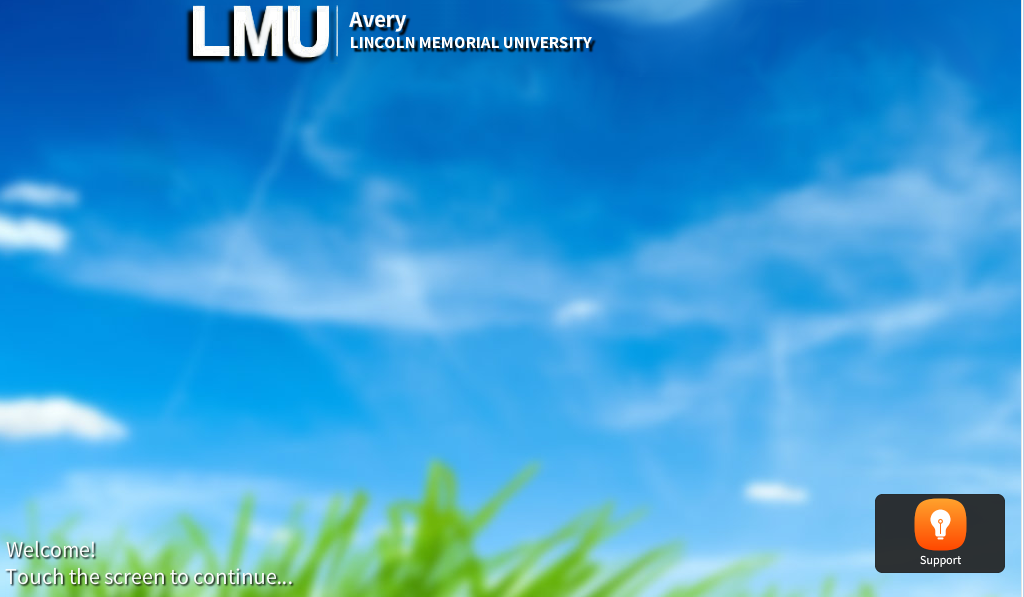
To use the podium computer, use the touch panel located on the podium. Touch the screen to turn the system on.
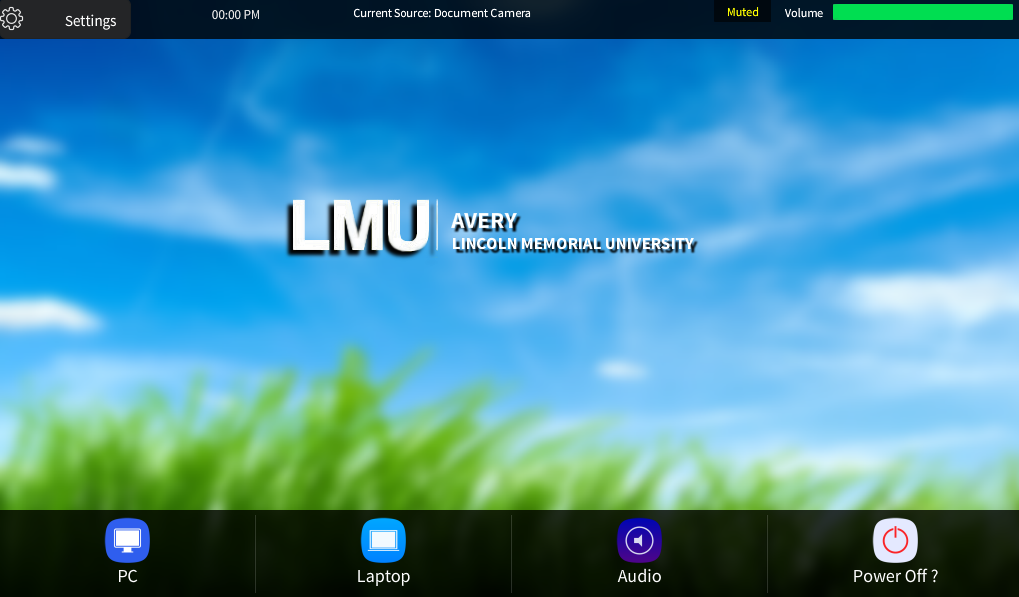
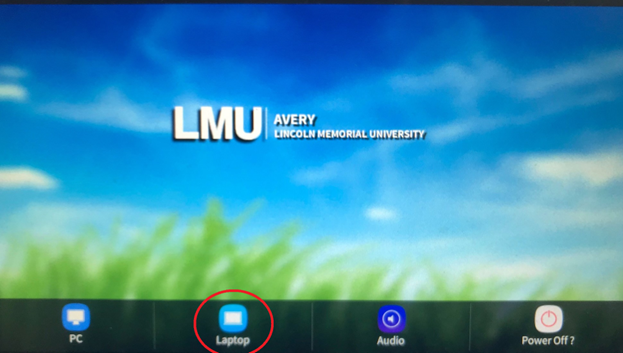
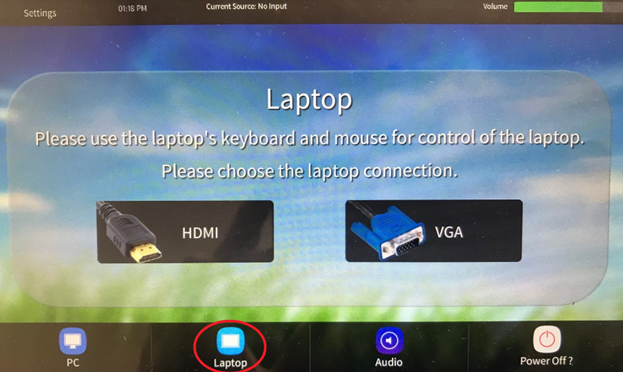
Touch the PC icon to send the podium PC to the screens or if you are using a lap-top, plug the cables in the podium to it and press the laptop icon and then choose VGA or HDMI.
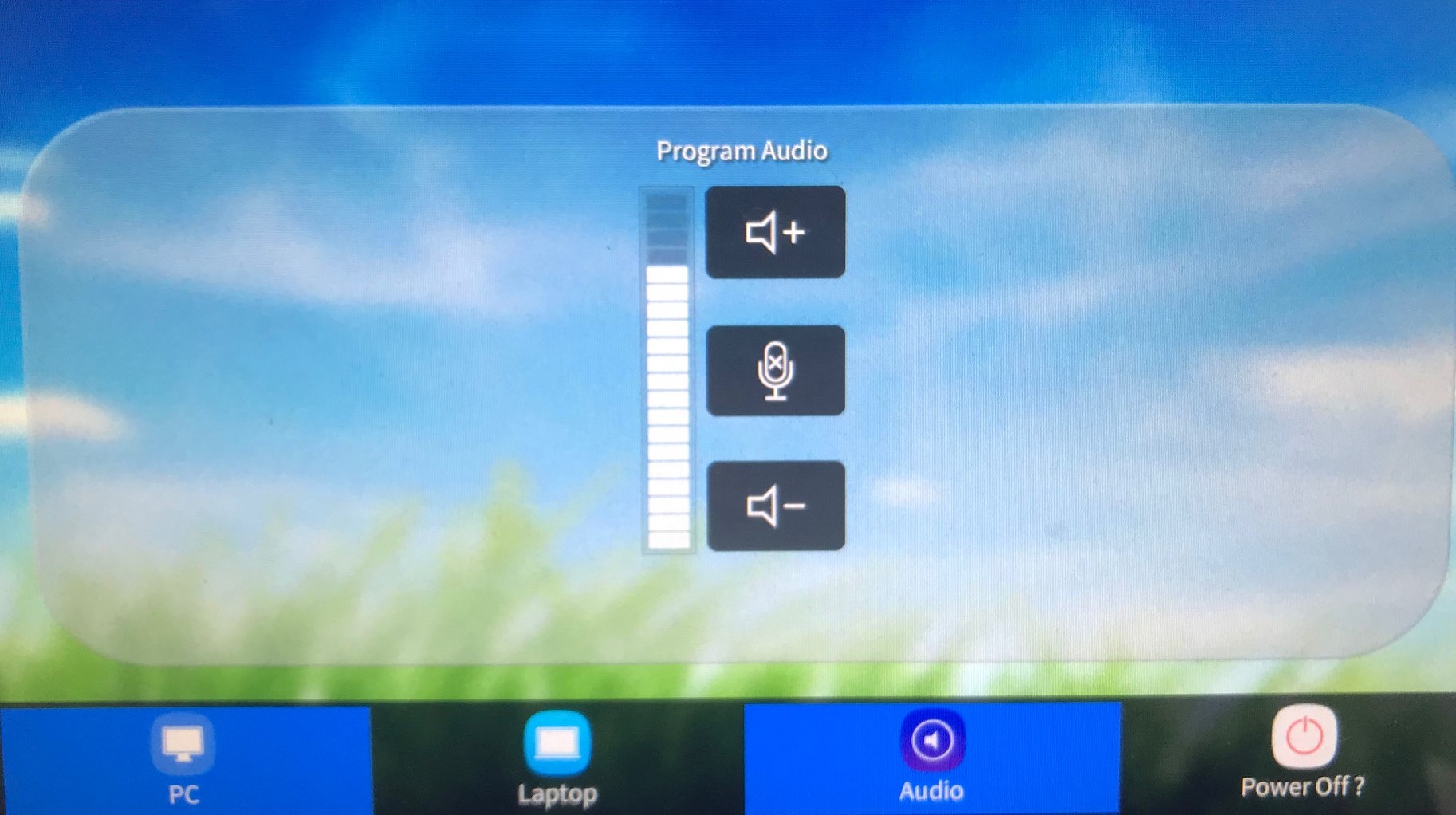
Press the Audio icon to access the volume control. *You can control the source volume from here.
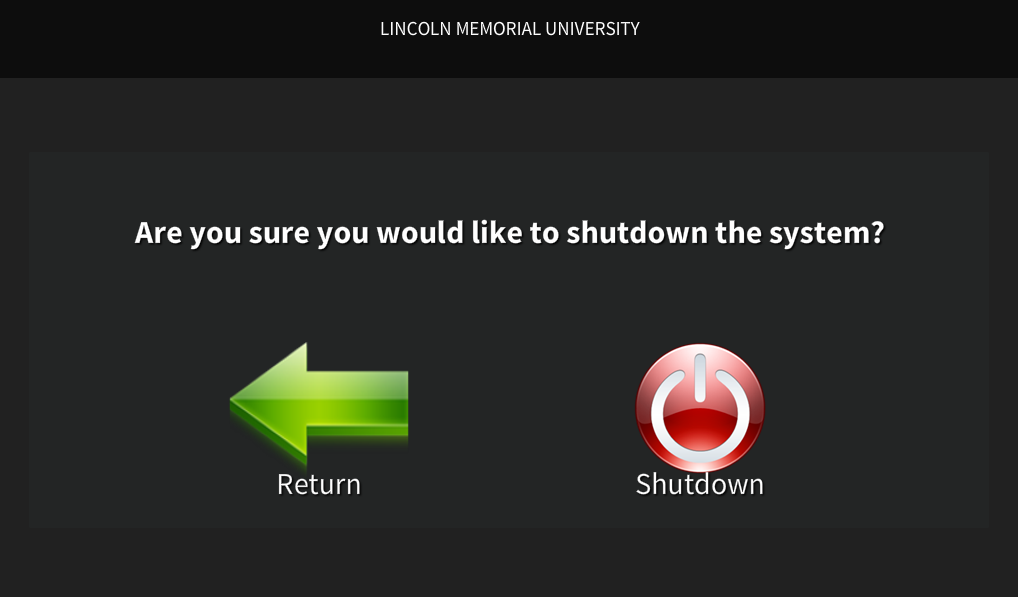
To shutdown the system, please press the power off icon and press shutdown on the following screen.
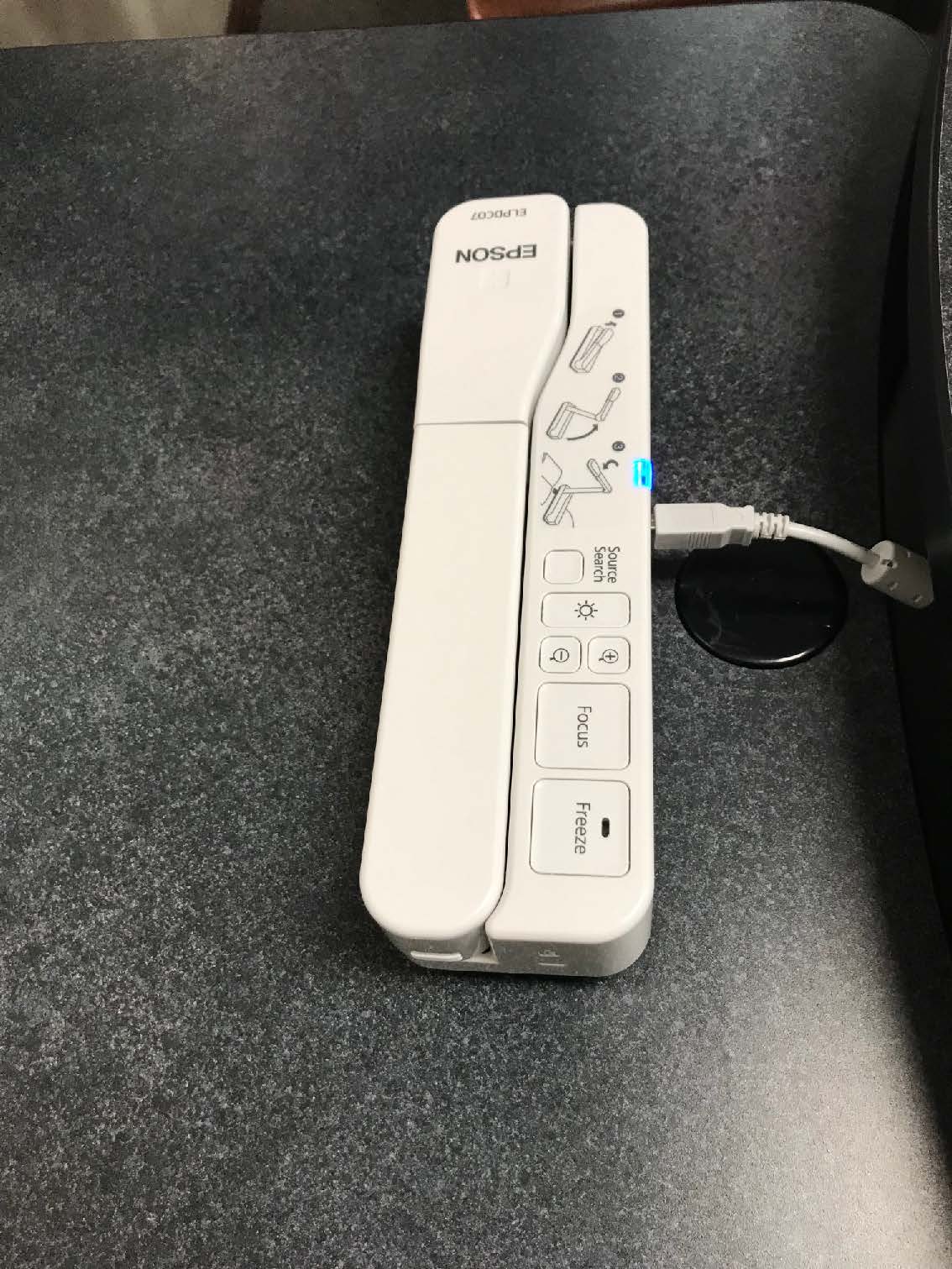
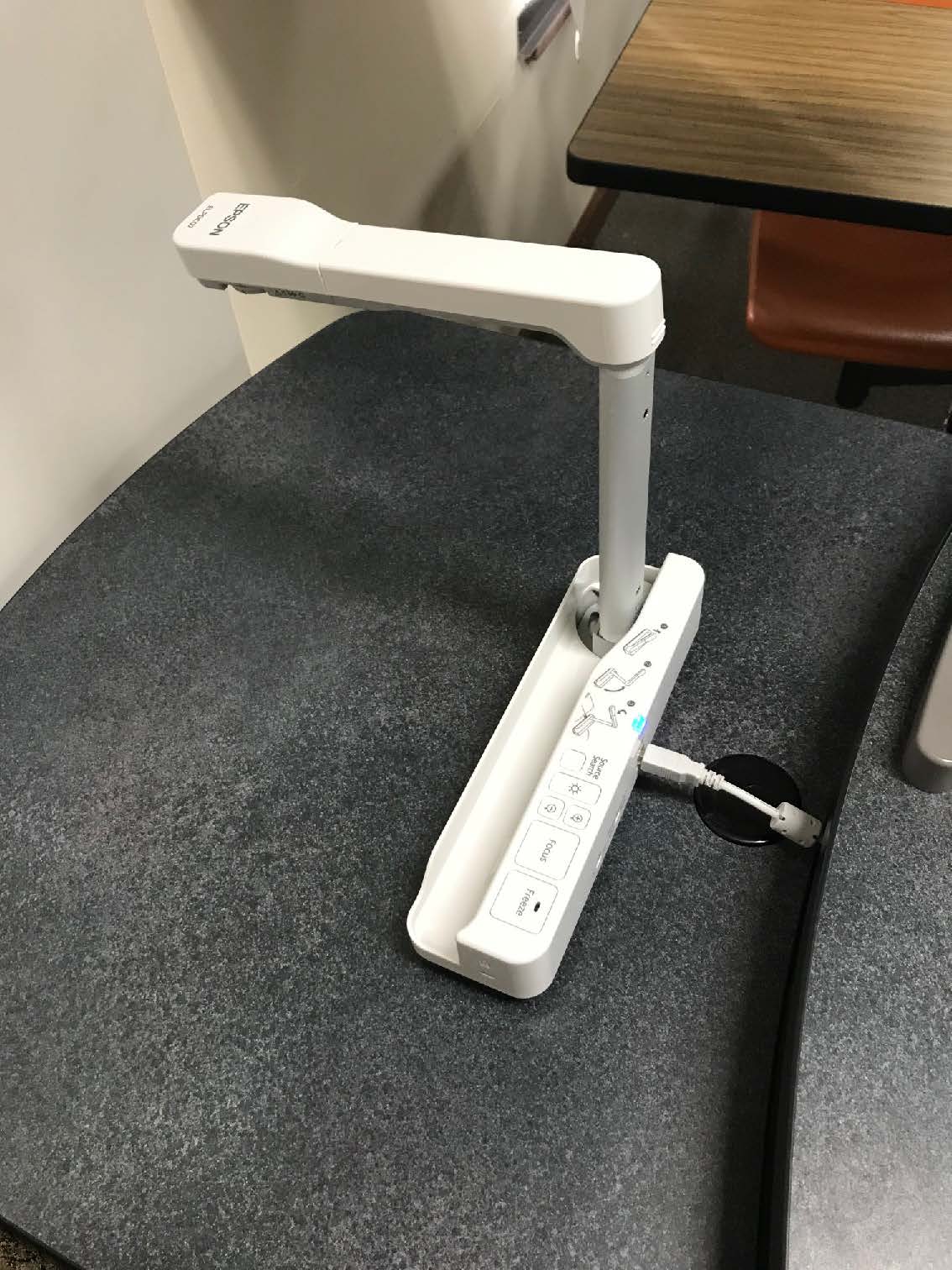
To use the Document Camera, please use the camera app from the Desktop on the PC screen. You will also have to send the pc to the screen as the doc camera runs from the pc. To use it please pull the camera up as shown.
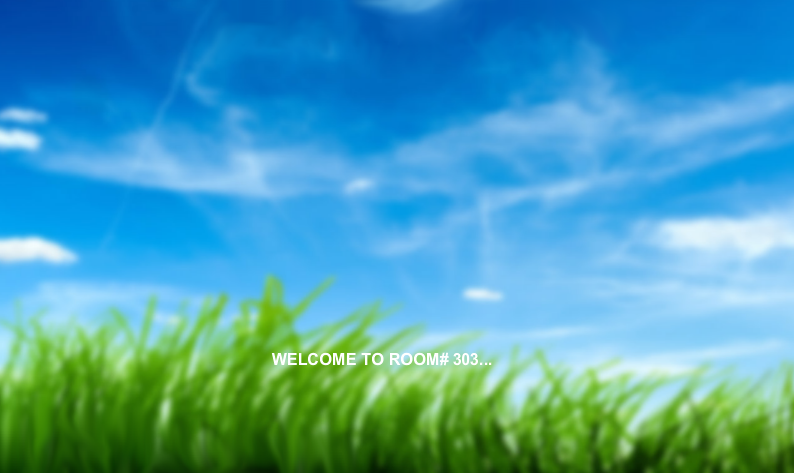
To use the podium computer, use the touch panel located on the podium. Press
anywhere on the touch panel.
*Once this button is pressed the screen will come on.
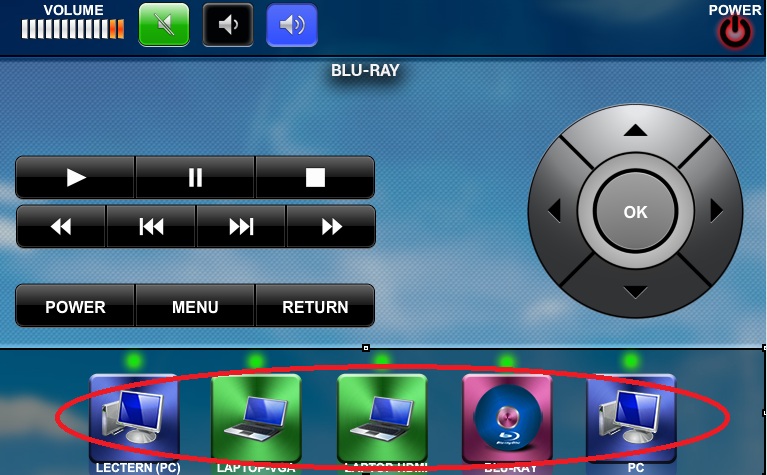
Once the room system is on. Select the source that you want to send to the screen
from the bottom row.
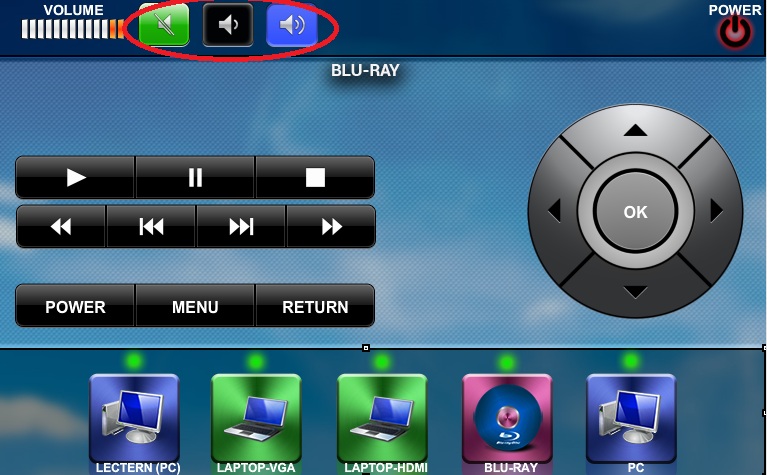
The volume controls are on the top left side of the touch panel. You may have to
turn the volume up to hear the audio from the selected source.
To shutdown the system, please press the power button located on the top right
side of the touch panel. Then press “yes”.