*Please note to use AirMedias on campus you must first be connected to the LMU Internet*
Open a web browser on any computer and type the IP address that appears on the bottom left of the screen in the room into the address bar of the browser. Then press enter to navigate to the AirMedia. You will see the page below where you will need to click "Start Presenting"
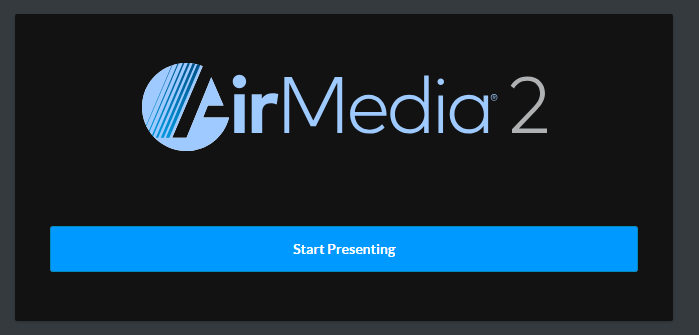
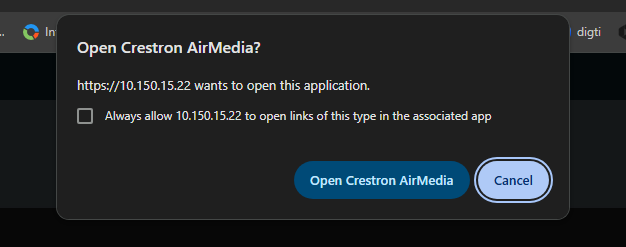
After clicking the button above you may see a screen like the one below. Make sure you select "Open Crestron AirMedia" if you do.
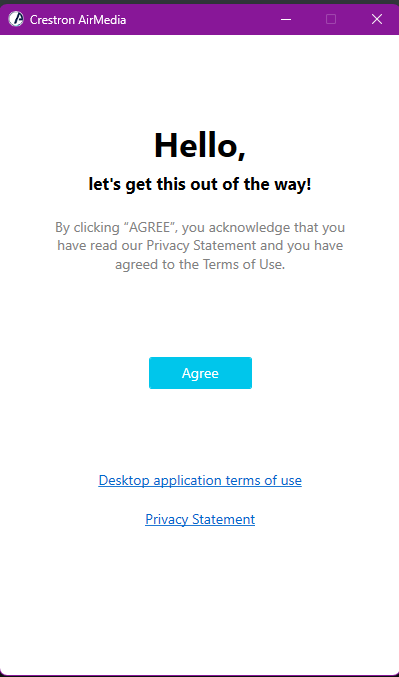
At which point the AirMedia app will begin to load. A window will open in the center of your screen. Click "Agree" once it loads.
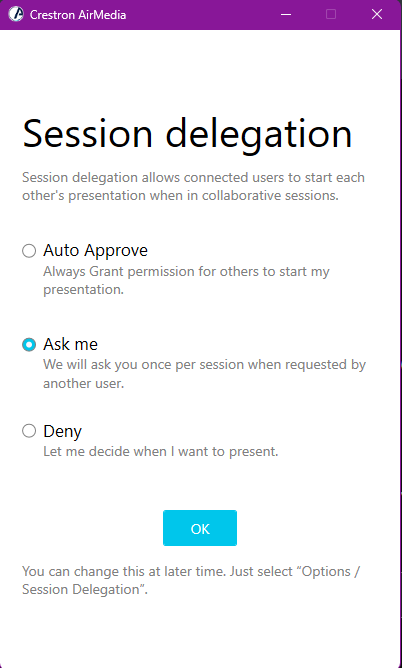
Clicking agree will load the next page. Please select the desired option. Then click "OK".
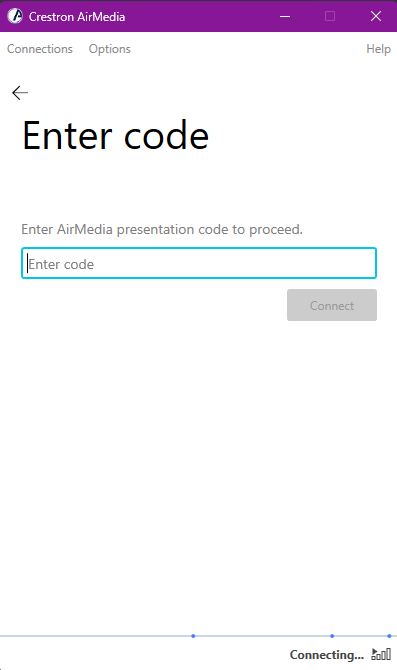
Then you will be taken to code screen. Enter the four digit code display on the screen. Then select "connect". This should display your computer to the screen.
Additional Information
Event Support:
• If you need Event support from IS please put the ticket in as soon as possible. LMU
requires 24 hours' notice for all event requests, but in high-activity times, support
may be limited if your event is not already on the schedule.
• If you do not plan to use the technology already in a space and need additional
equipment, please include all items needed for the request. Including: Projector
Screen, Projector, Mic, Speaker, Laptop, etc.
• Do not forget to include the time of the event and the time the equipment would
need to be set up by.
Links
Panopto: https://lmunet.hosted.panopto.com/
Panopto Capture How To: https://www.youtube.com/watch?v=ia3E1kWWUl8&t=168s
Panopto Introduction: https://www.youtube.com/watch?v=RqLJEJEHu6E
Submit a Ticket: https://lmuconnect.lmunet.edu/TDClient/177/Portal/Home/
Helpdesk Information:
Phone: 423.869.7411 Email: helpdesk@lmunet.edu
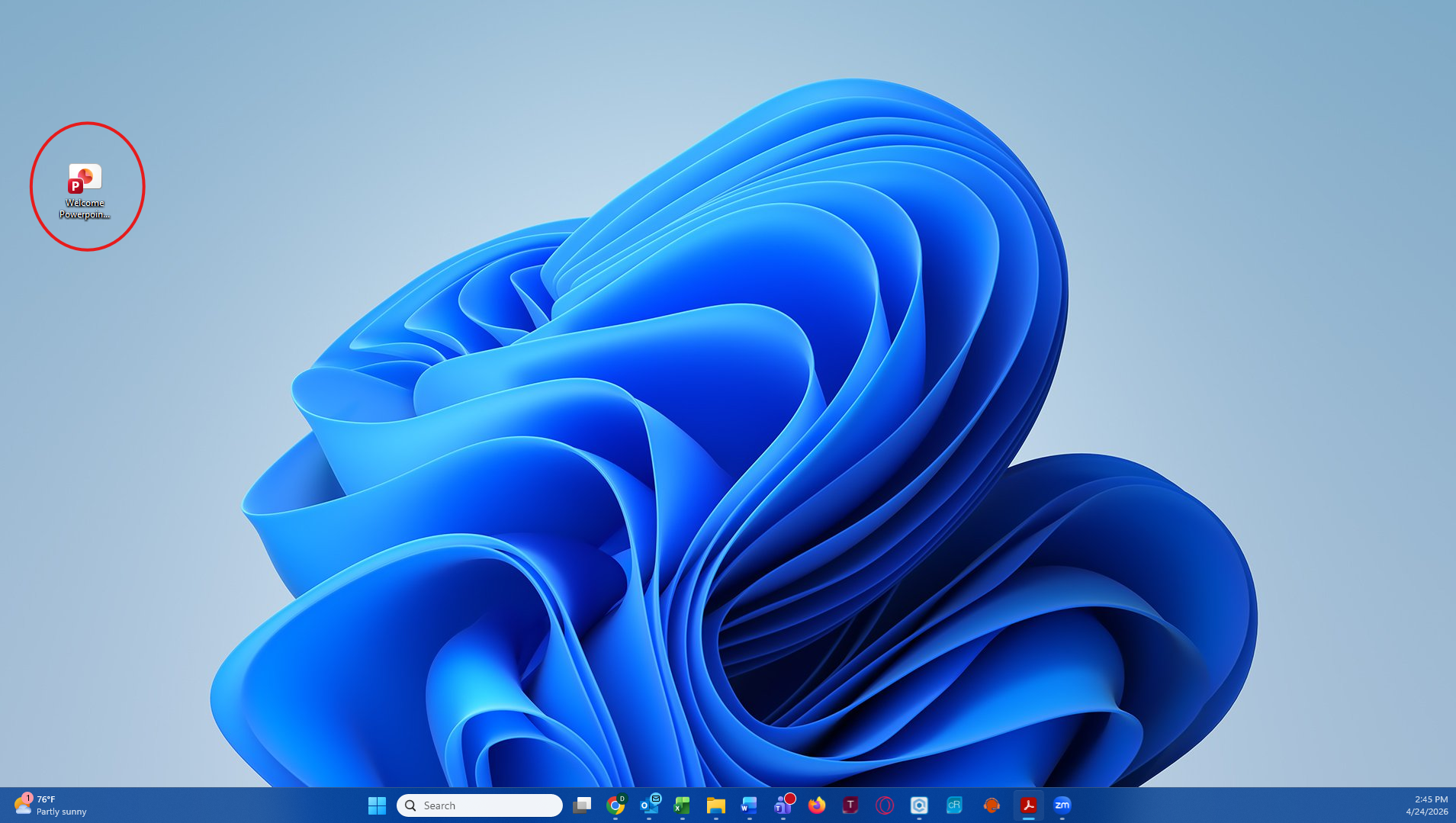
To get started select the Power Point you use to mange the Digital Signage slides or Directory.
Make any changes to the slides you need from within the Power Point. Then save the Power Point.
*Do not change the name of the Power Point when you save it or it will not upload to the TVs.*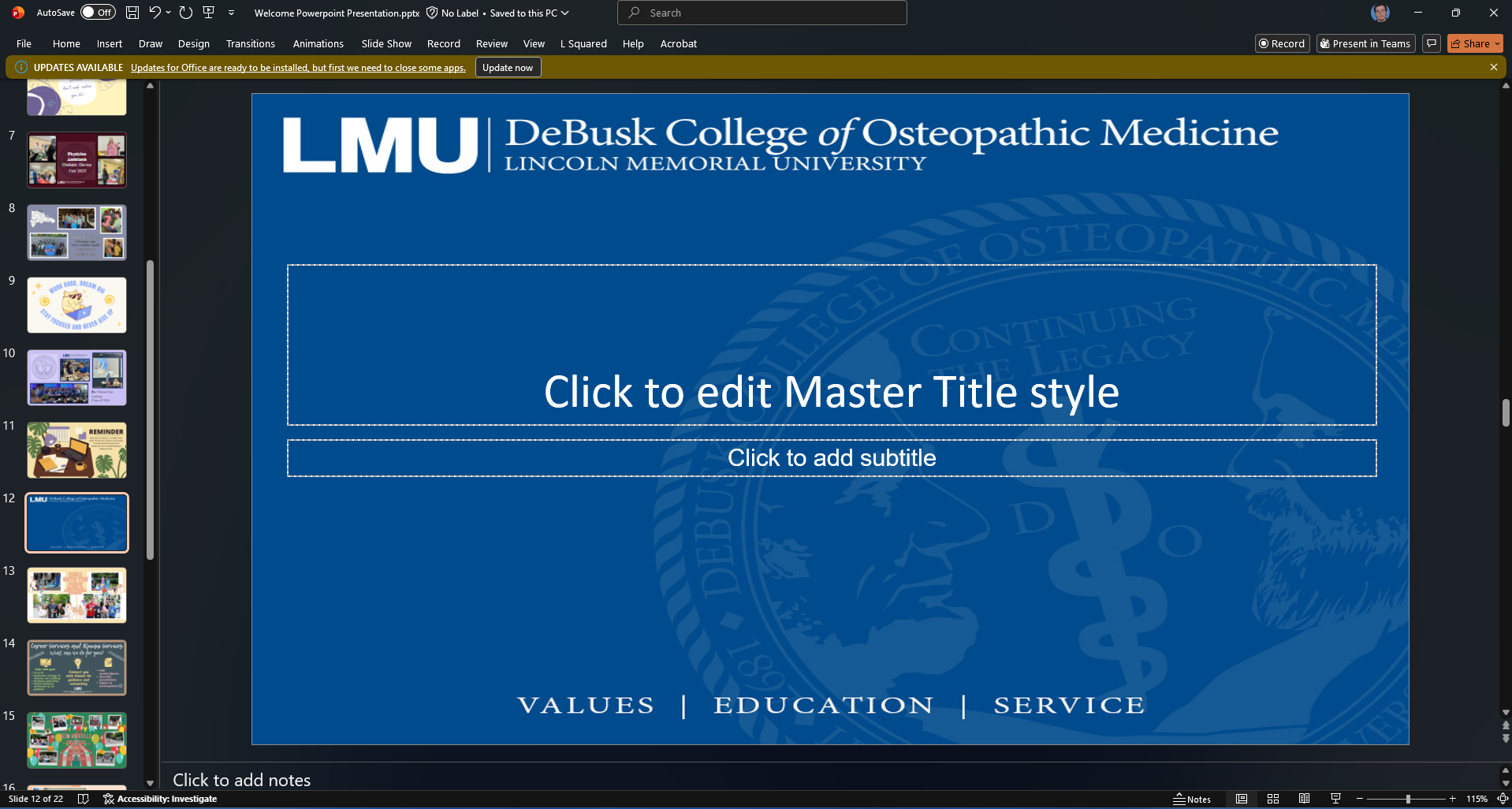
Once the changes are saved elect the "L Squared" add-on tab at the top of the Power Point after you have saved the changes.
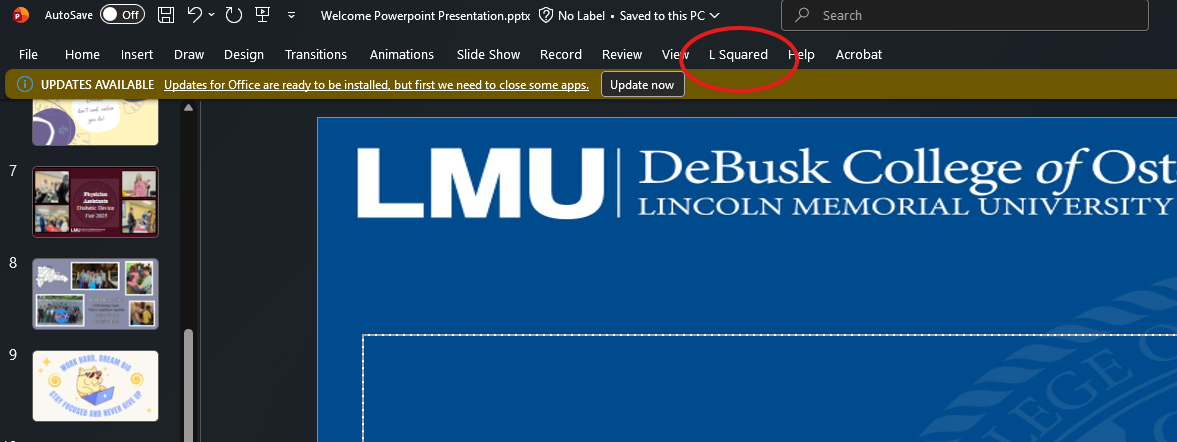
Then select the "Publish as Static Content" on the far left.

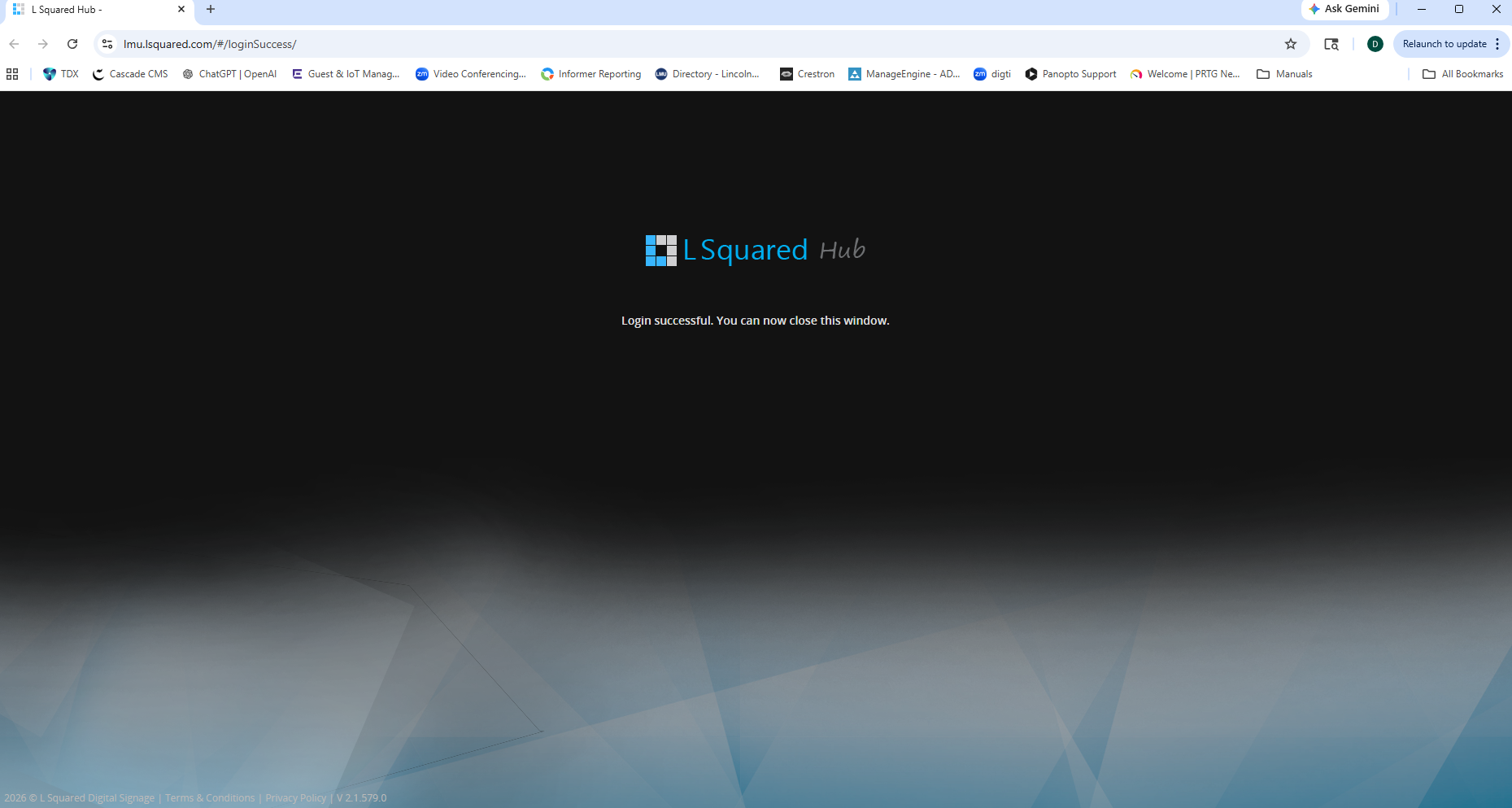
A new browser tab should pop up that will automatically log you in. Once the browser tab shows the screen below you may exit out of it and go back to Power Point.
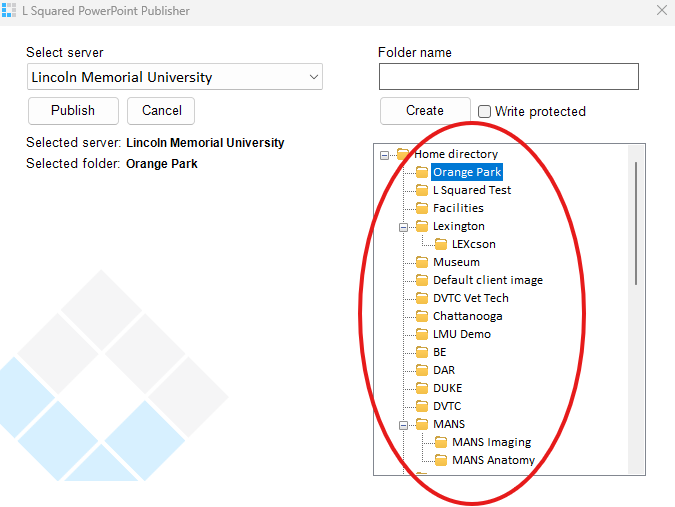
This will open up a new window ( see below). Select the folder on the right
for the corresponding TVs you wish to update.
Once you have selected the correct TVs then press "publish".
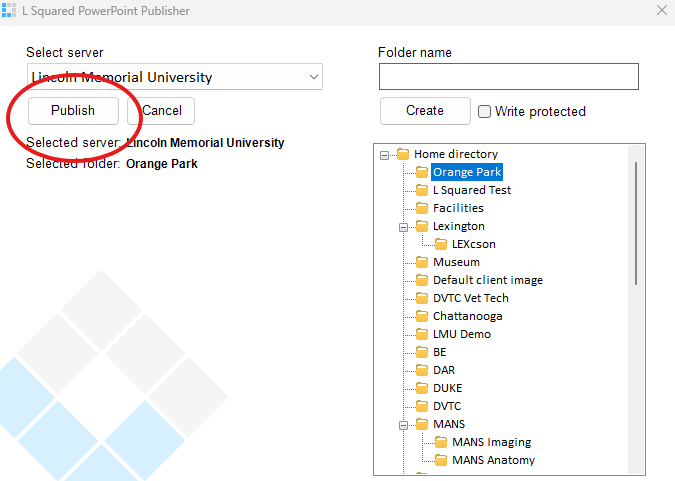
The changes will then be sent to the TVs.
Please note the larger the Power Point the longer the changes will take to the TVs. Anywhere from 30 seconds to 15mins is expected deepening on the Power Point size. Once the Power Point is done sending to the screens you should get a "successfully" message on your screen.
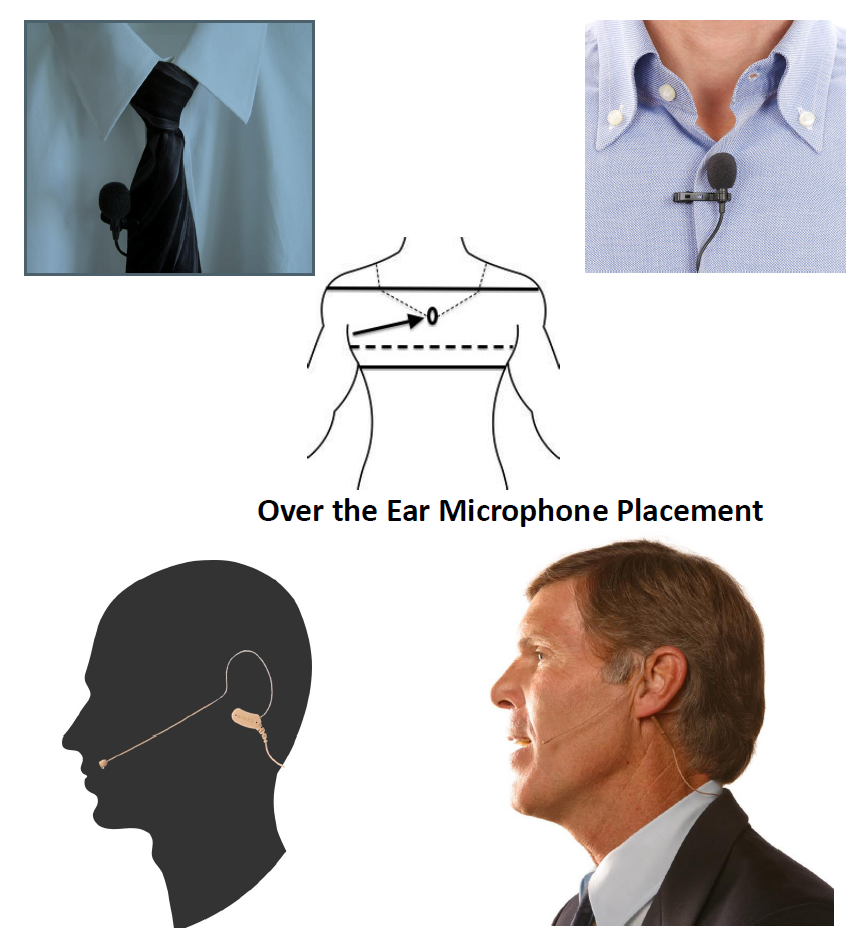
Be sure to place the lavaliere microphone center of your chest as depicted by the images below. The microphone must be pointed straight up for best sound quality.
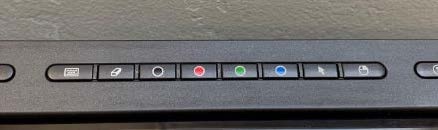
Some monitors will allow you to select preset color for the stylus by selecting the corresponding button from top or right hand side of the monitor.
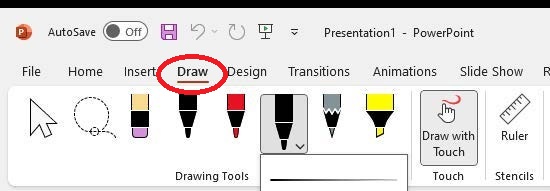
If the monitor does not have a preset color button or the provided colors do not meet your needs, while using Power Point then you can change the colors from within Power Point. Once in Power Point. Select "Draw". You will then be presented with several pen options.
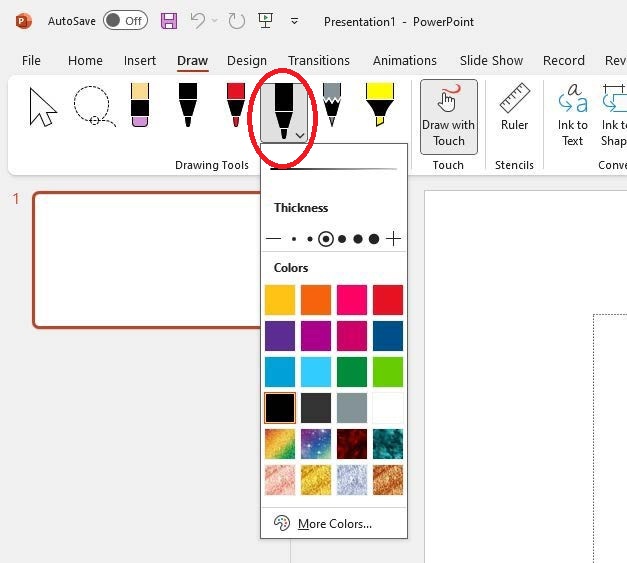
Select any of the pen options then hit the drop down arrow. From here you will presented with additional color options to annotate with.
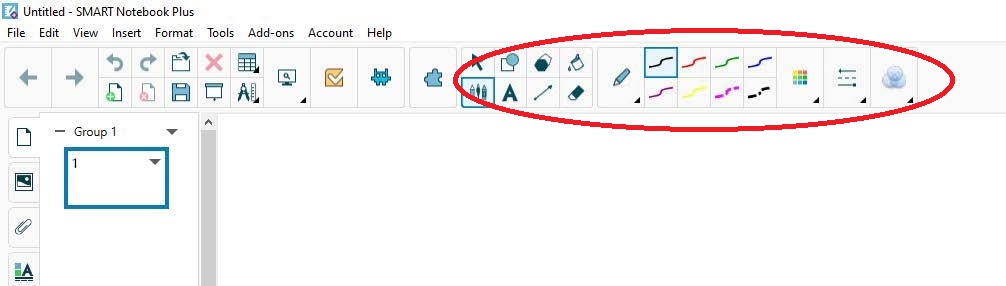
The Smart NoteBook software also allows for additional stylus adjustments. This software was built specifically for the stylus and acts as a whiteboard. To use it find the Smart Notebook software on the podium computer. Then Once the software opens you will then be presented with several color options to use in the top right.