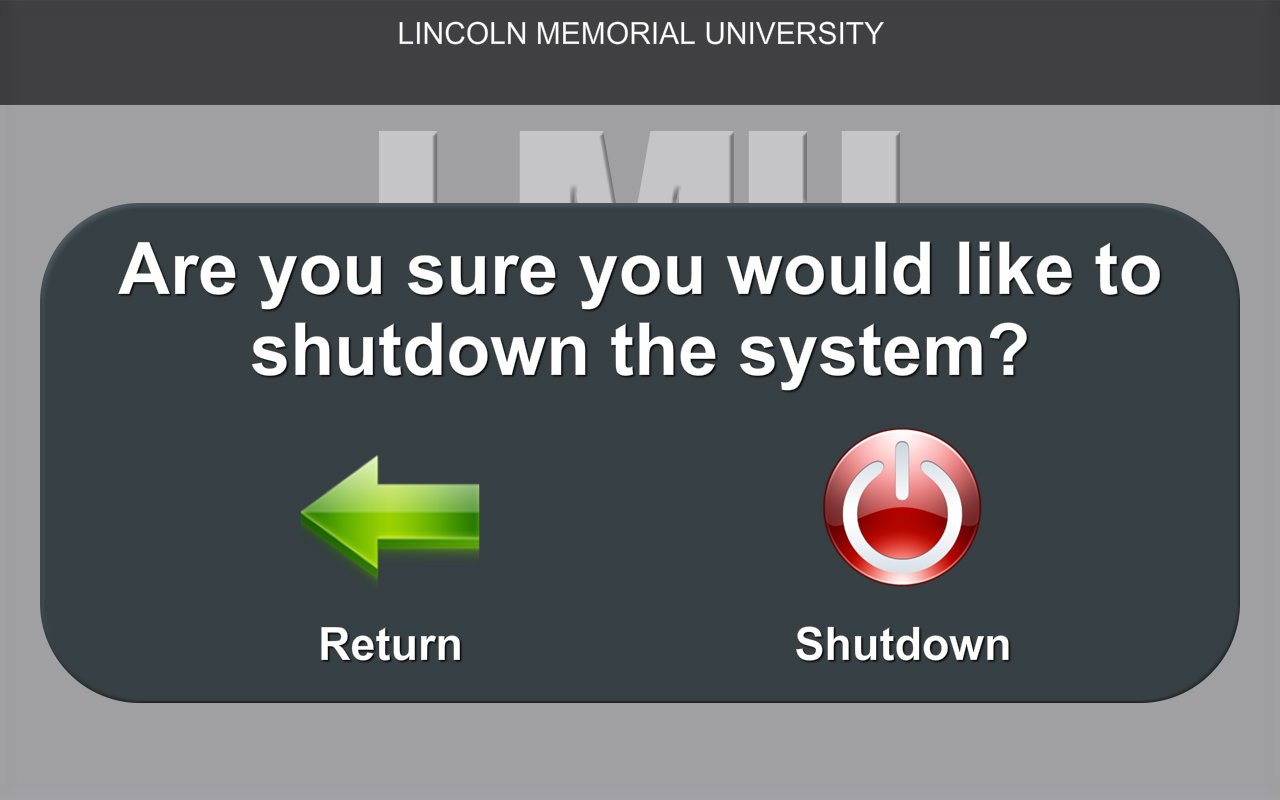
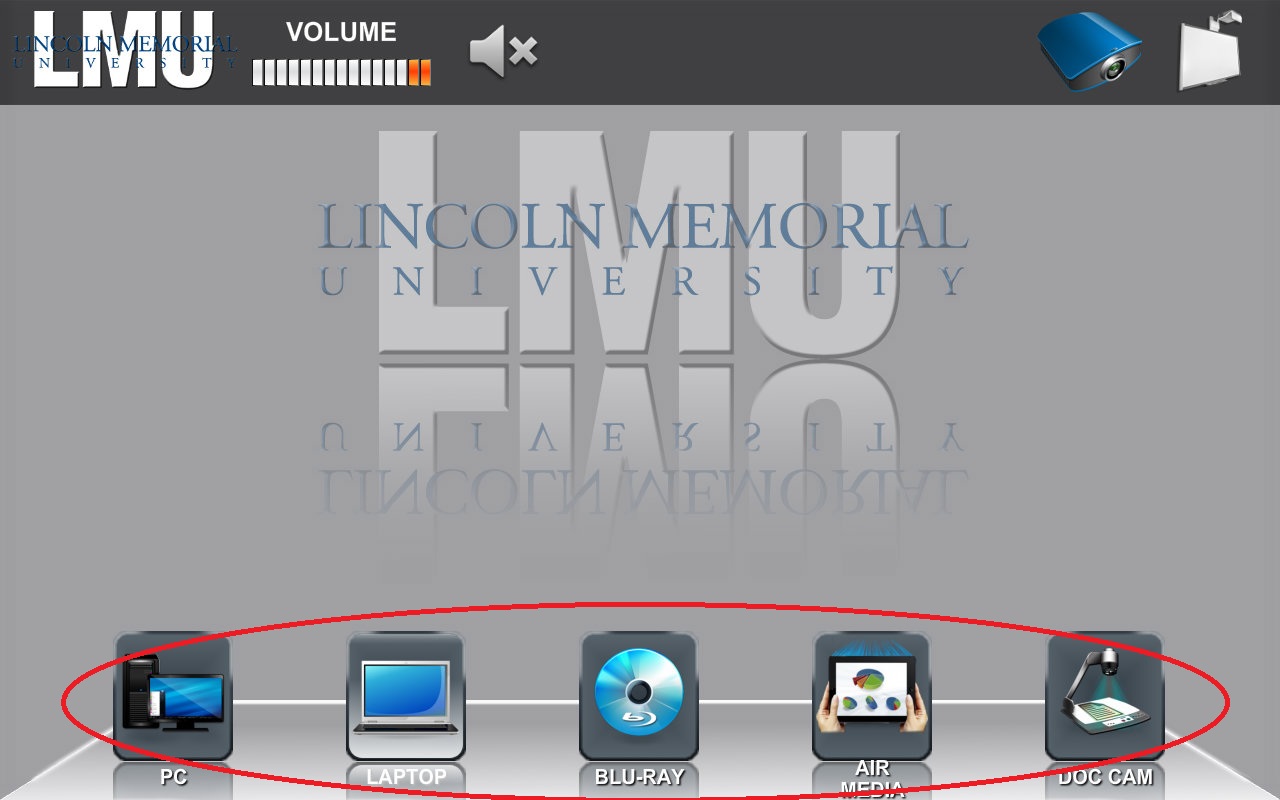
To turn the system on press the home screen as pictured below.

Then select the source you want to send to the screens at the bottom.
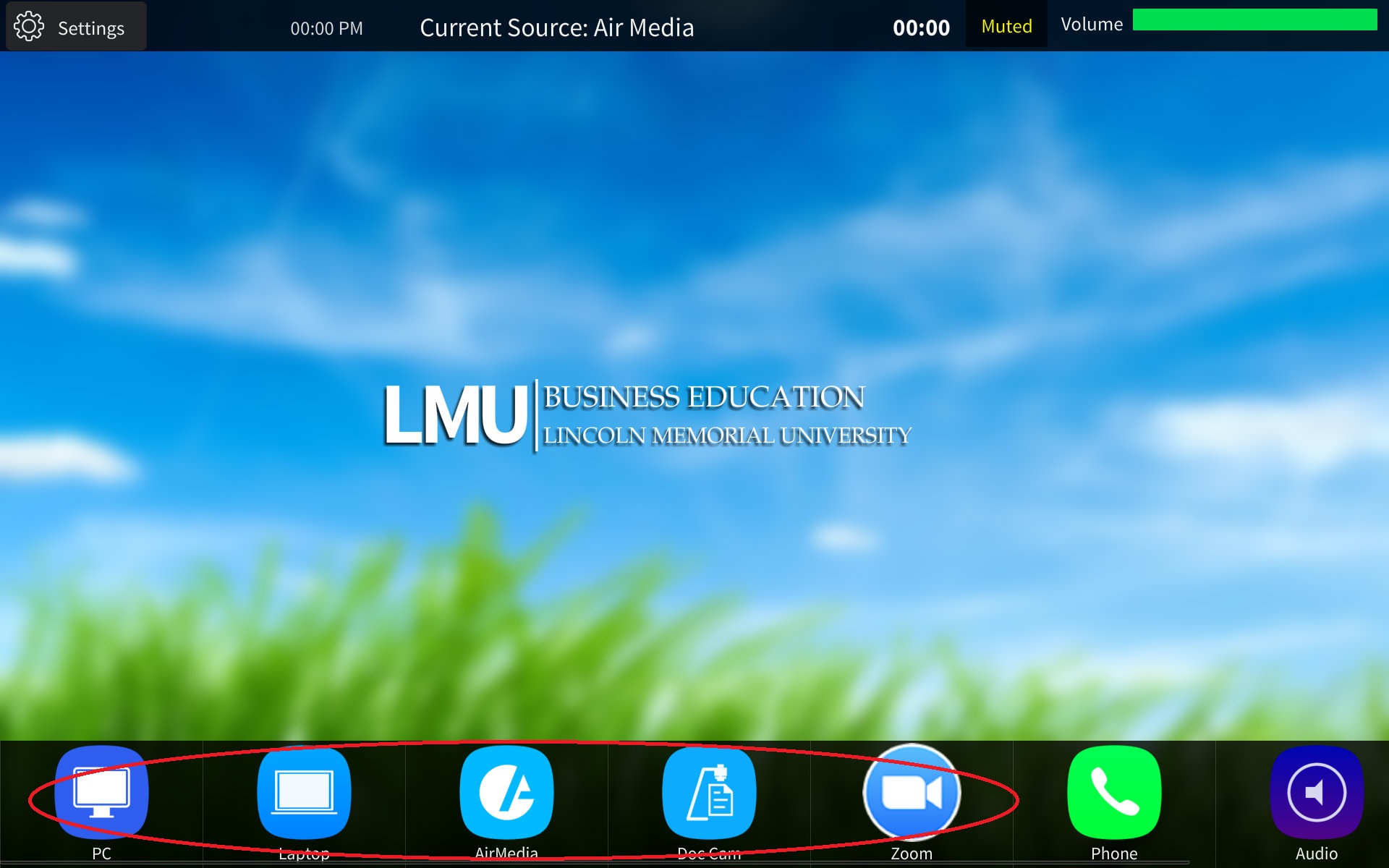
To send a device image wirelessly select AirMedia & follow the onscreen instructions.
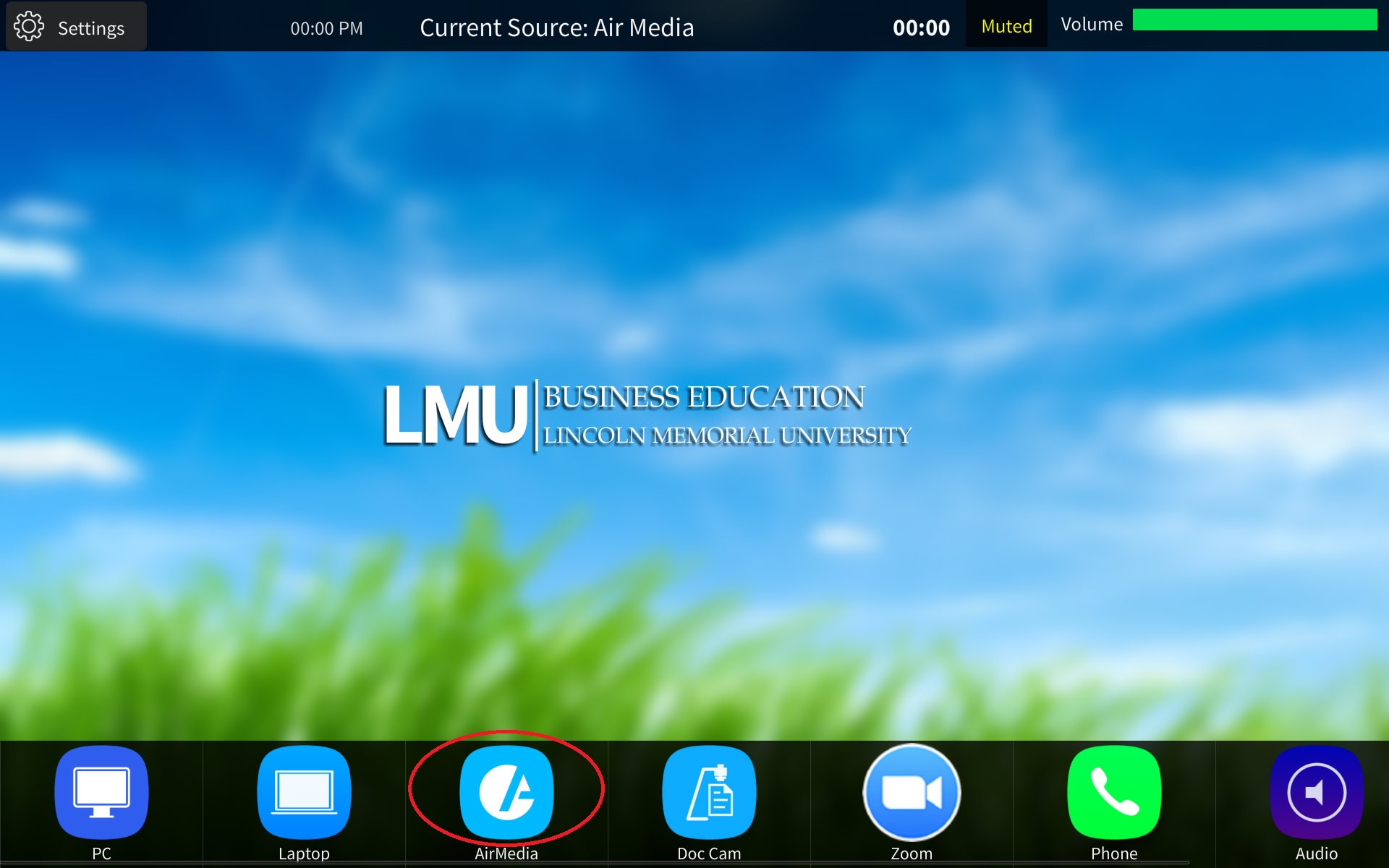
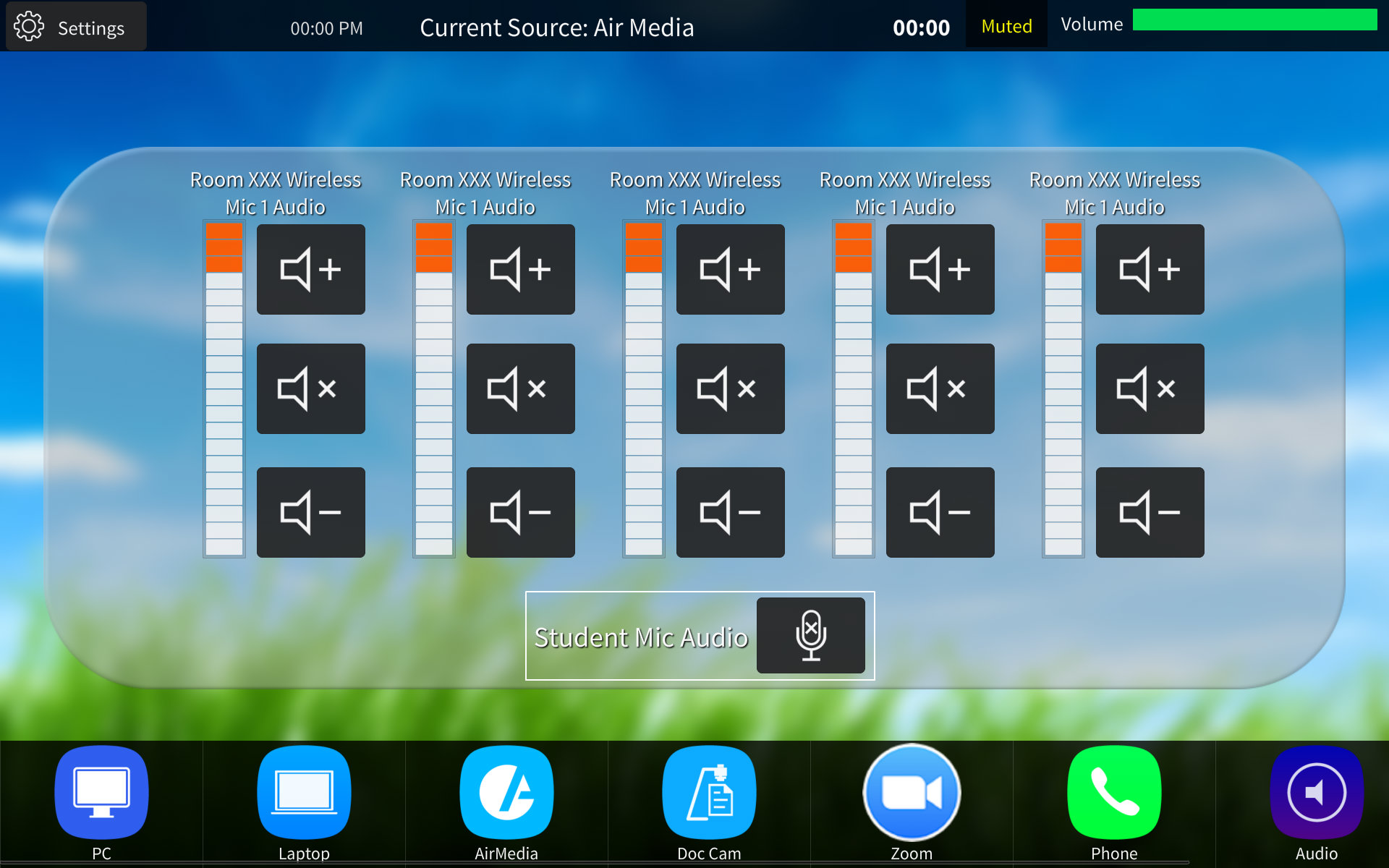
You can adjust audio levels or mute microphones by selecting the purple "Audio" icon.
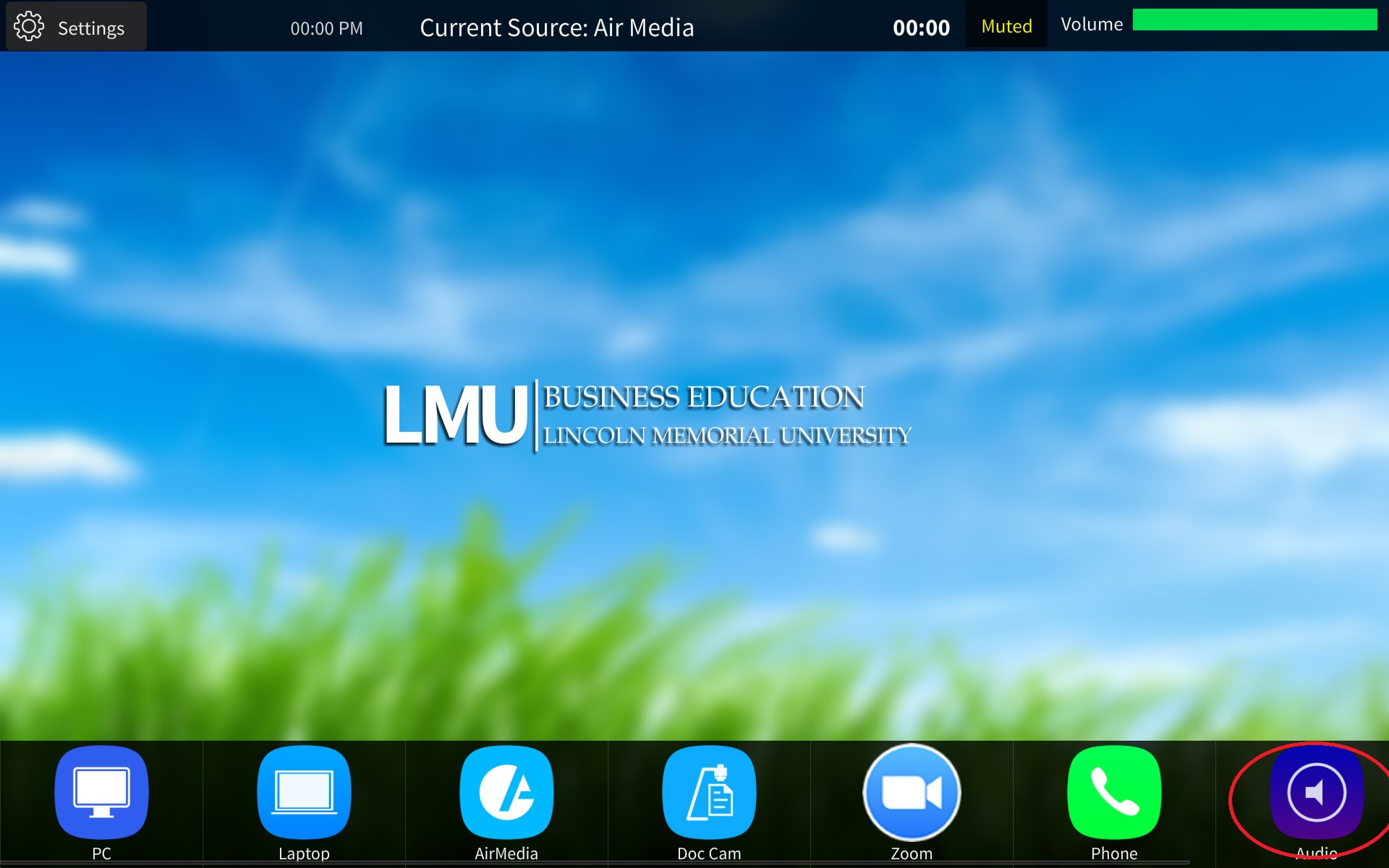
This will bring you to the screen below.
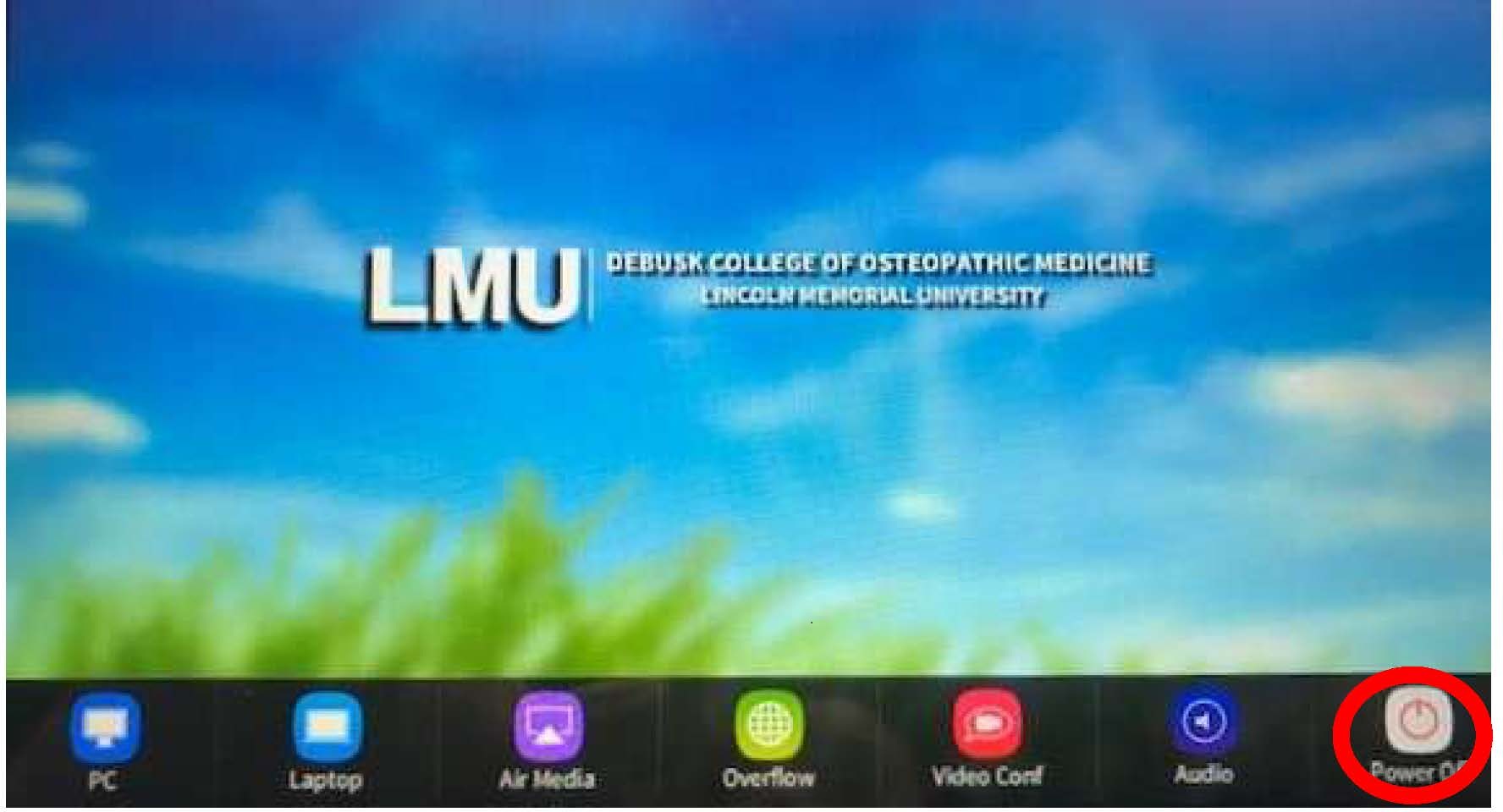
When finished, please select the power off button then select shutdown.
***Please note that for ZOOM CAPABLE rooms the following instructions also apply.***
To use Zoom, select the Zoom Button from the bottom row.
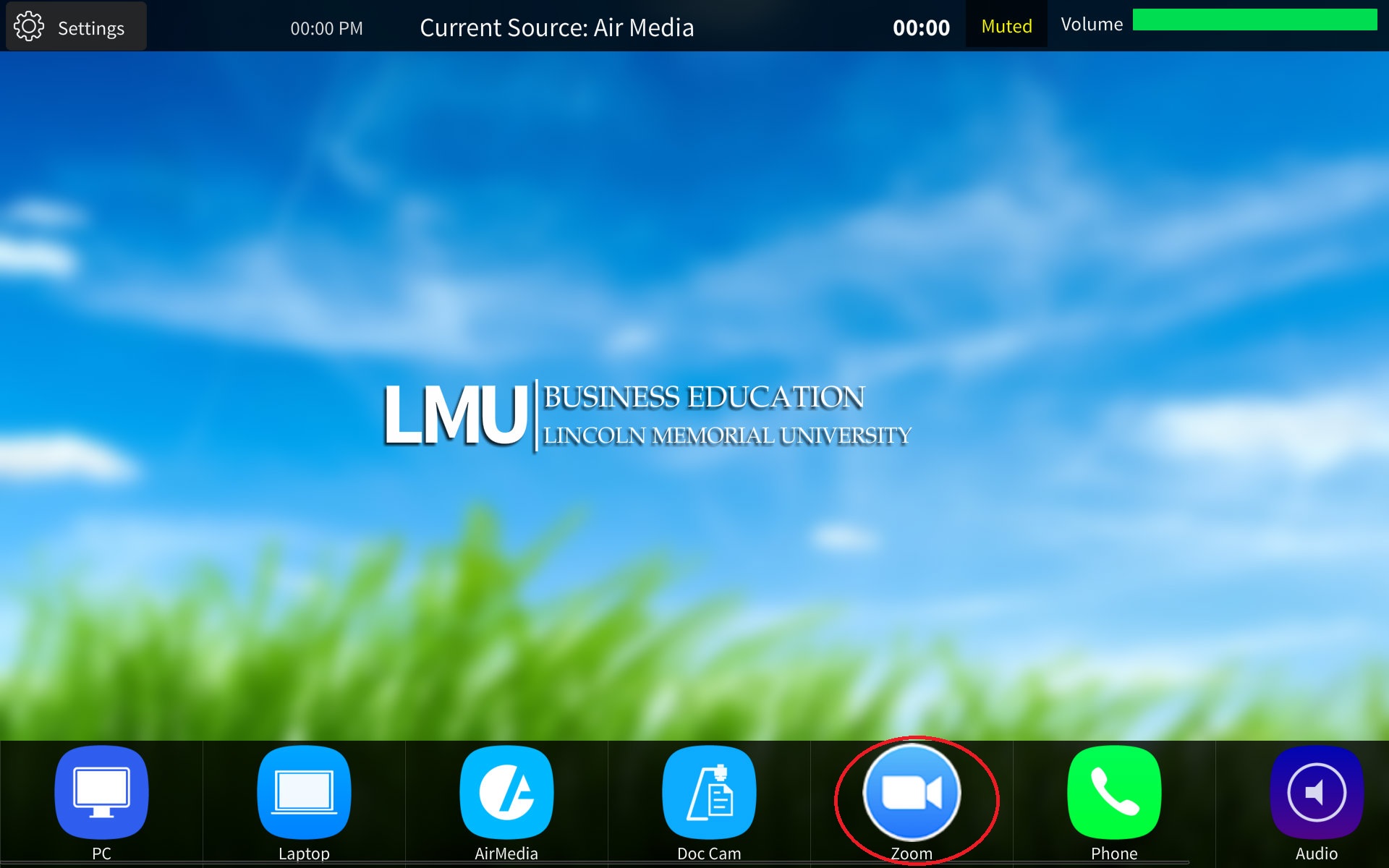
Press the large Zoom square on the right side of the page to bring up the Zoom interface.
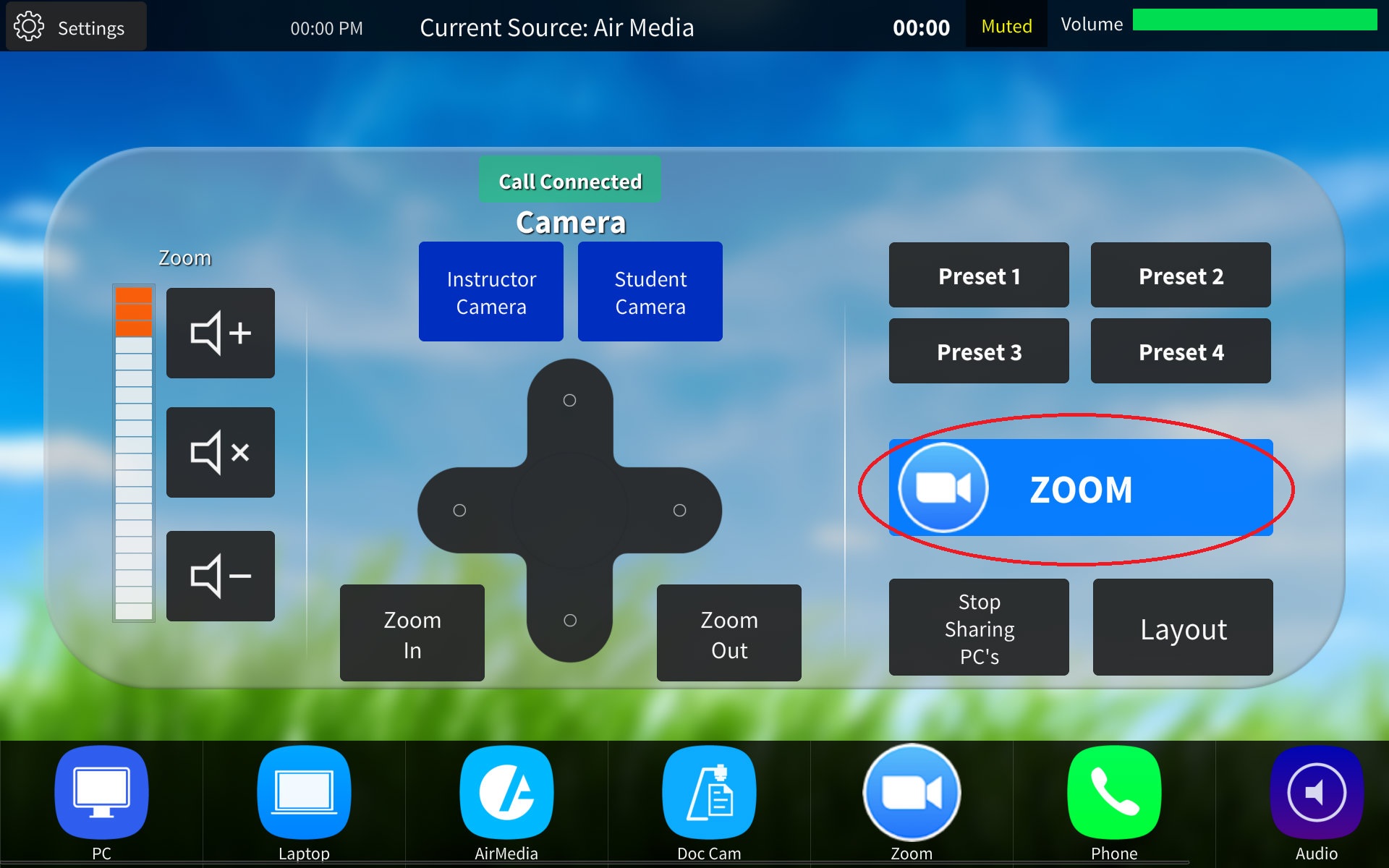
You will be brought to the screen below. To join an existing meeting ID, select "join" and enter the meeting ID.
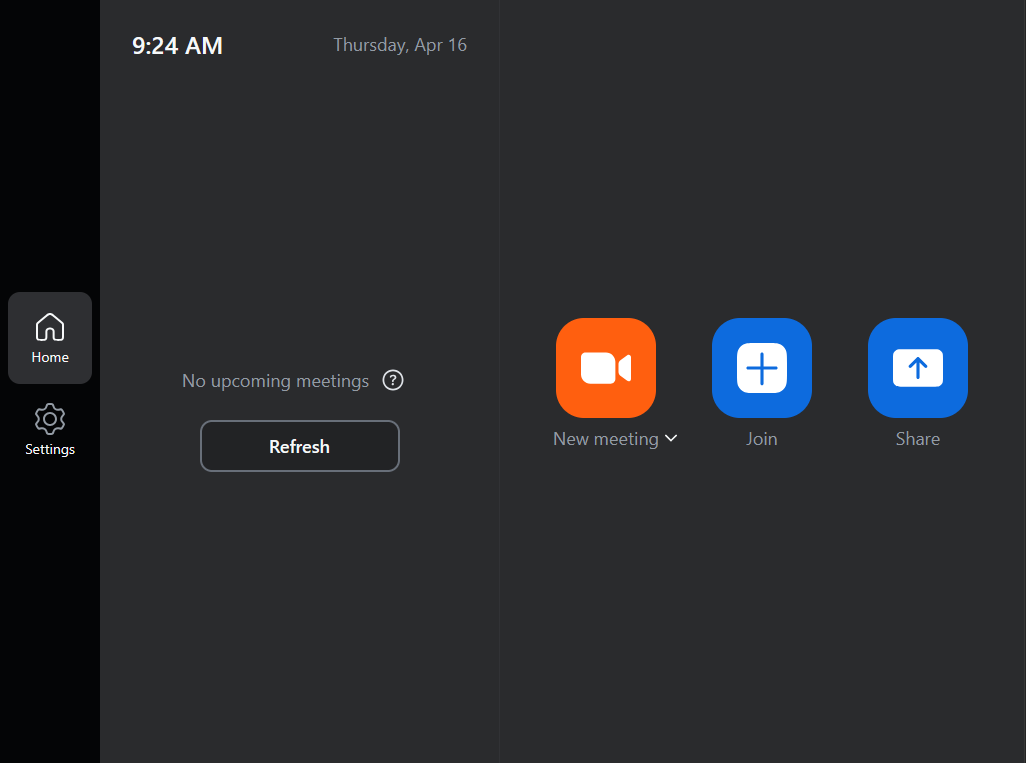
To share the screen content to Zoom, select the blue share content button.
Then select the source you want to send to Zoom from the meeting.
Use the dial pad on this screen to adjust the camera.
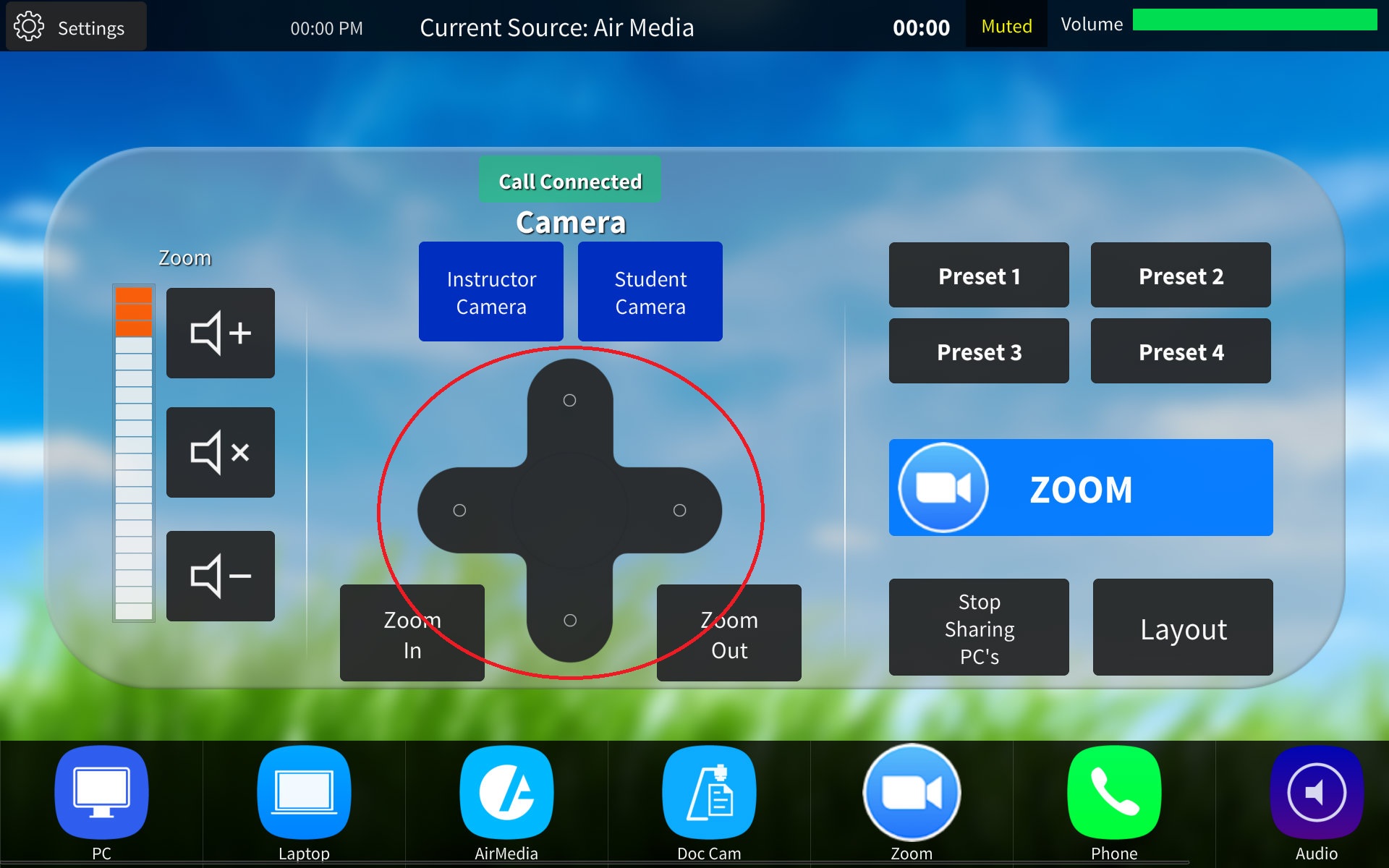
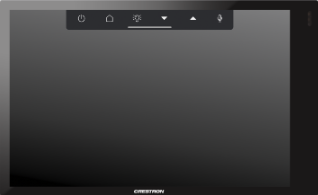
To alternate between the touch panel and the Zoom Page. Sidel the bar at the top down and press Home to go to the Home Screen.
To turn the system on press the home screen as pictured below.
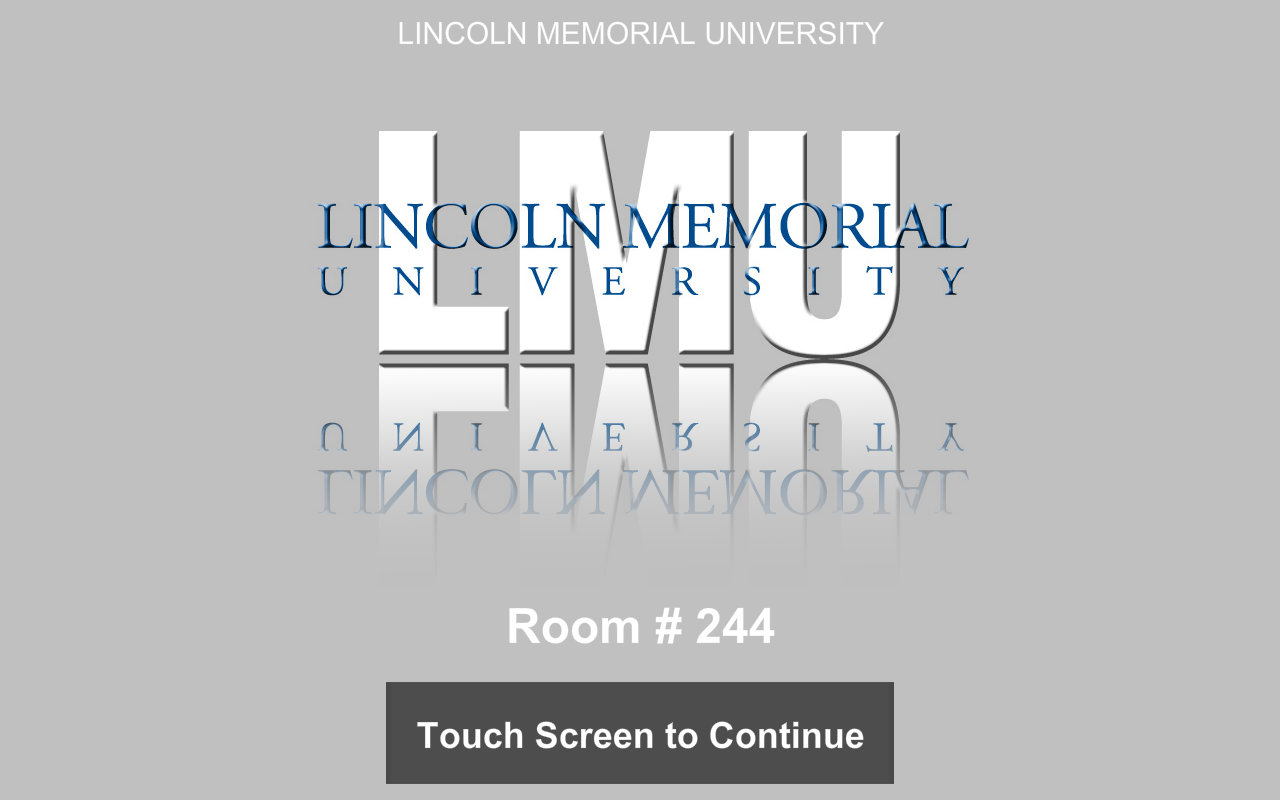
Then select the source you want to send to the screens at the bottom.
If you select BluRay you will be provided with additional controls for the BLuRay Player.
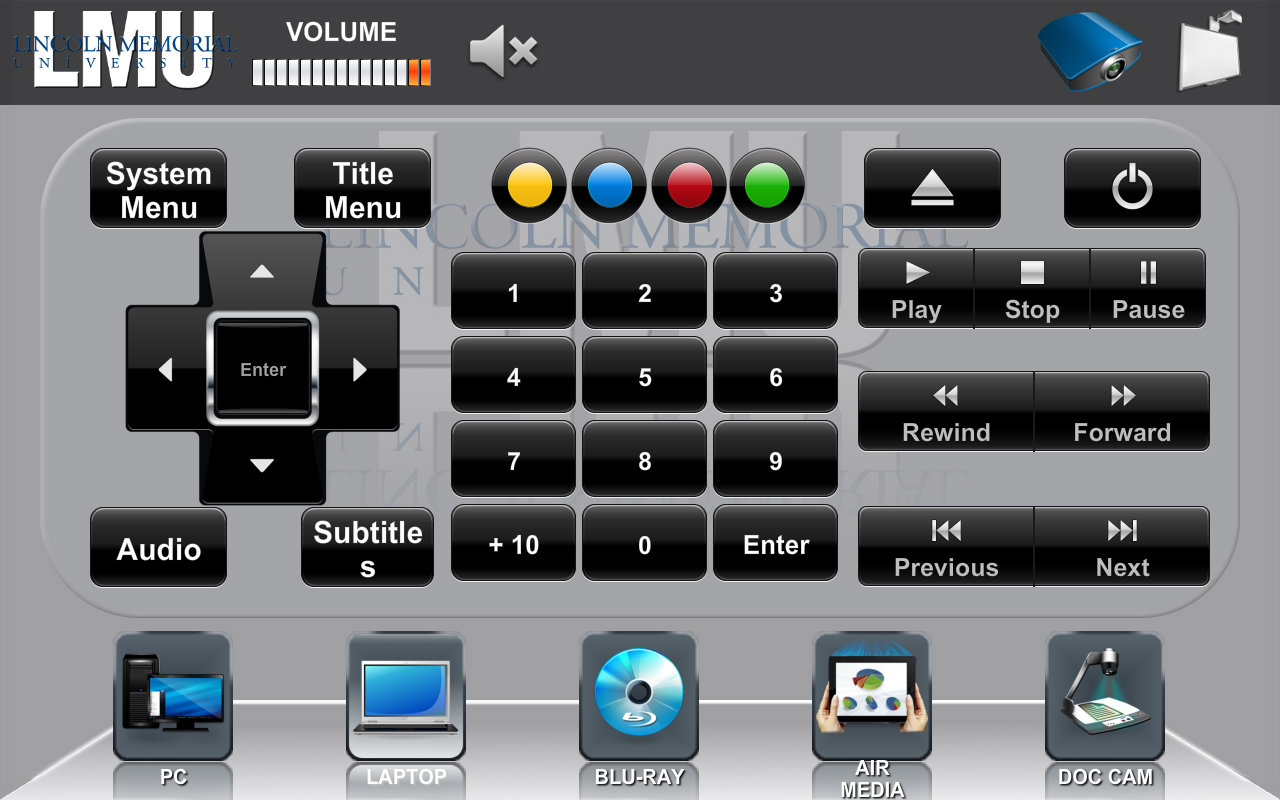
When finished, please select the "power off" button then select shutdown.