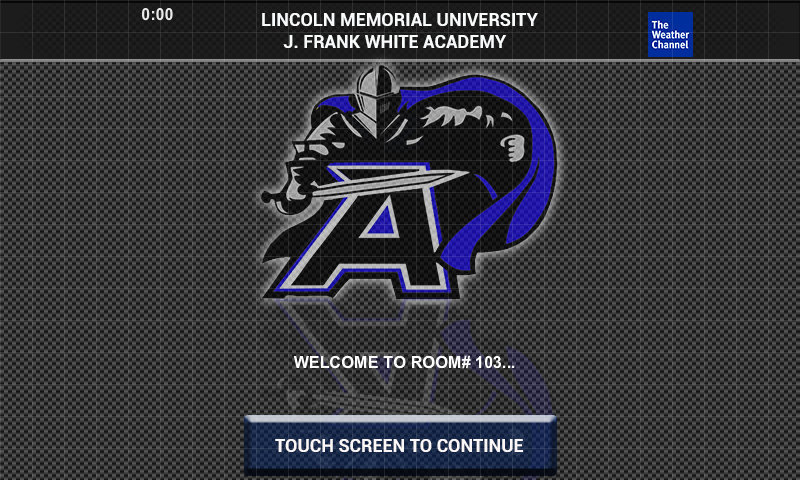
To turn the system on press and hold anywhere on the touch panel's home screen pictured below:
Then select the source you want to send to the screens from the bottom row of options:
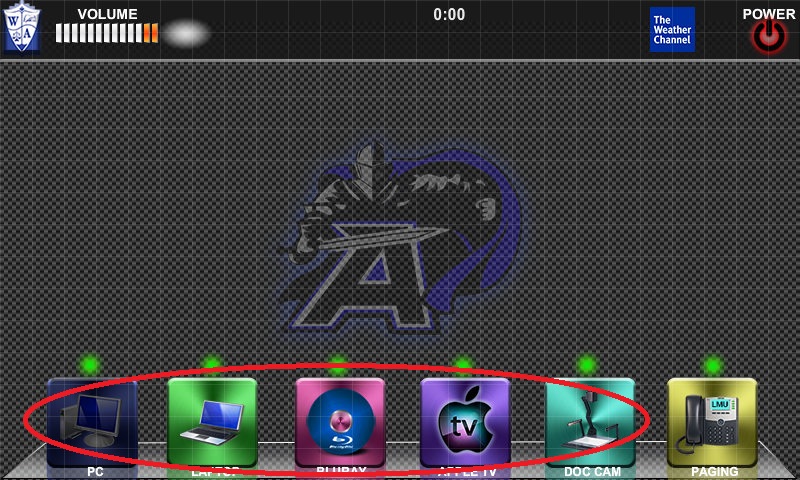
Select "PC" to send the cable labled PC to the screens.
Select "Laptop" to connect a Laptop to the provide wired connection on the podium.
Selecting the "Apple TV" button allows you to route the provided Apple TV to the screens. Then follow the on screen instructions.
Selecting "Doc Cam" allows you to route the provided document camera. Make sure it is on and the ar fully extended.
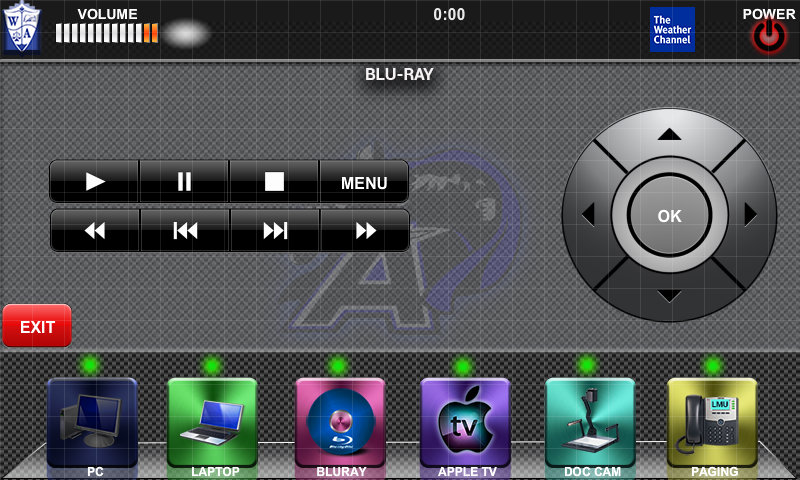
Selecting the "BluRay" option will allow you to play DVD/BluRay from the provided BluRay player. This is located in the podium. You will need to make sure the disk is fully inserted into the BluRay Player. Once you have selected BluRay from the touch panel you will be presented with the following controls:
You can adjust volume of the room speakers by hitting the speaker icon in the top left corner:
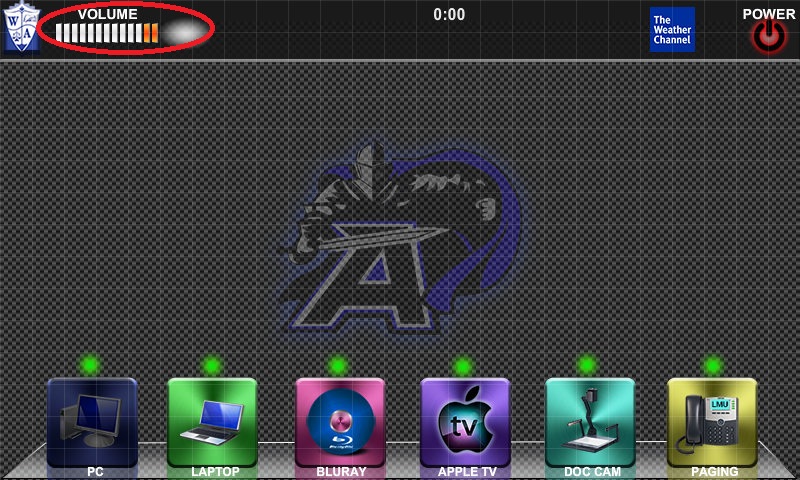
When you are done using the room please hold the shutdown button for 3 seconds to shutdown the room:
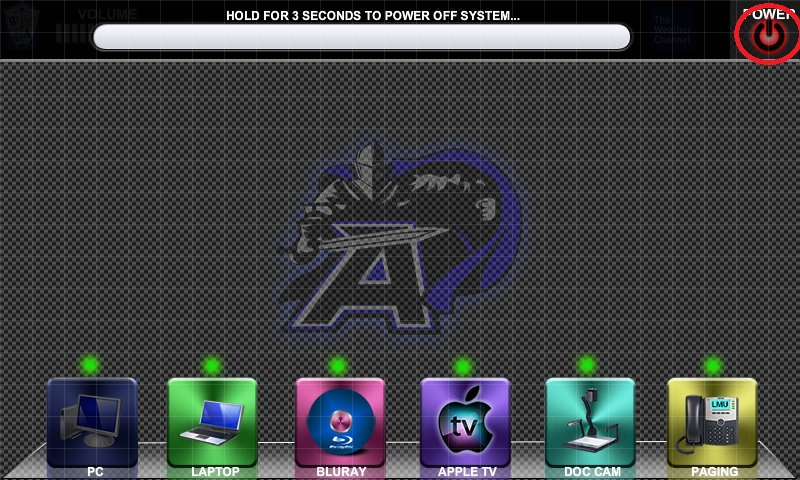
To turn the system on press and hold anywhere on the touch panel's home screen pictured below:
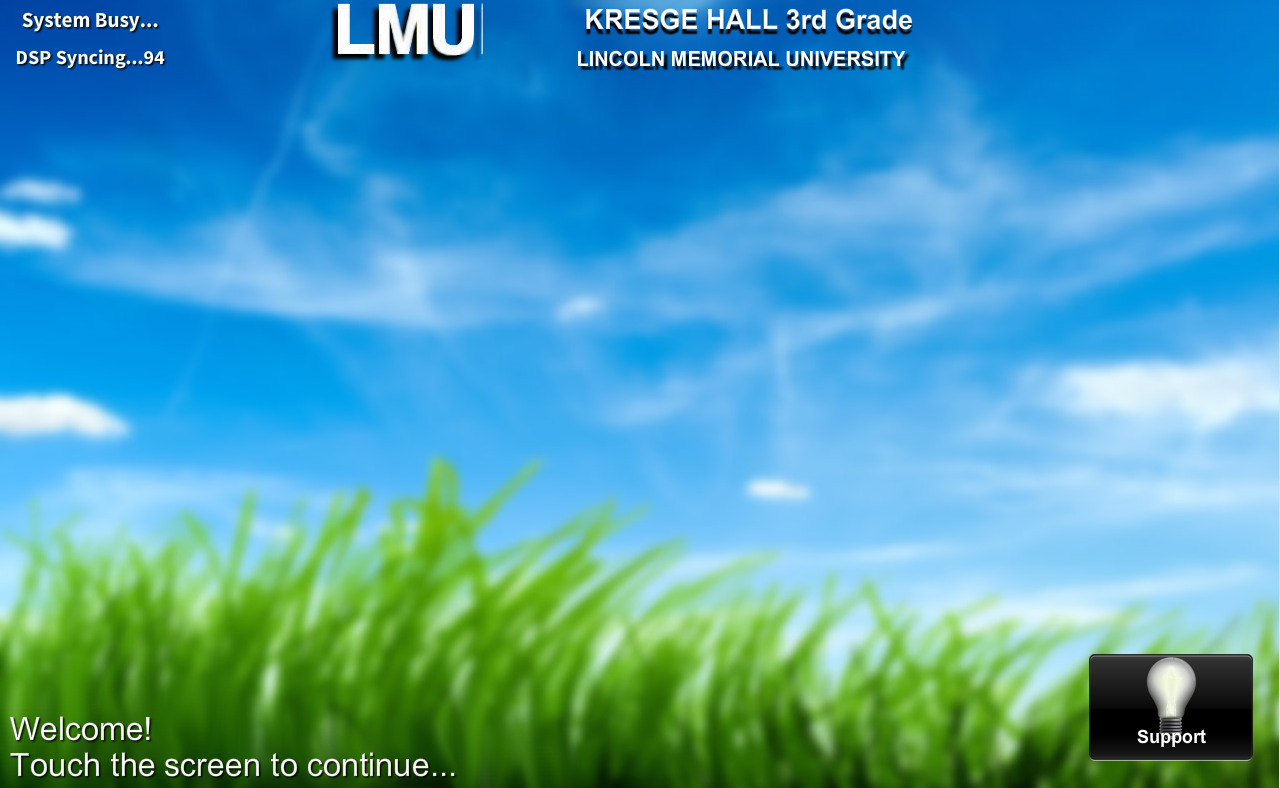
Then select the source you want to send to the screens from the bottom row of options:
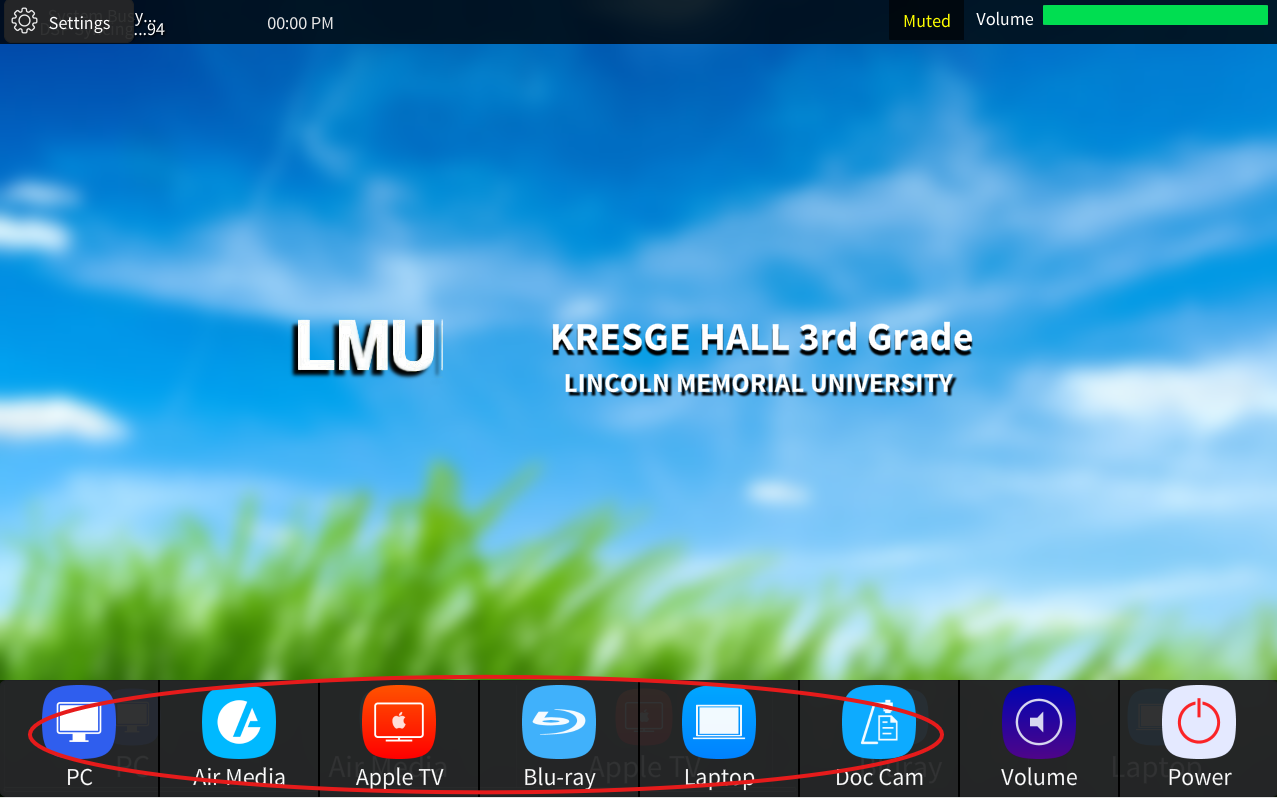
Select "PC" to send the Podiums provided computer.
Select "AirMedia" to send a device image wirelessly. Then follow the on screen instructions
Select "Apple TV" to route the Apple tv to the screen. Then follow the on screen instructions.
Select "BluRay" player to use the rooms provided BluRay player located in the podium.. You will need to make sure the BluRay/DVD is fully inserted into the desk tray.
Select "Laptop" to connect a Laptop to the provide wired connection on the podium.
Select "Doc Cam" to use the rooms provided document camera. You will need to make sure the camera is powered on and the arm fully extended.
You can adjust audio levels or mute mic by selecting the purple Audio icon shown below:
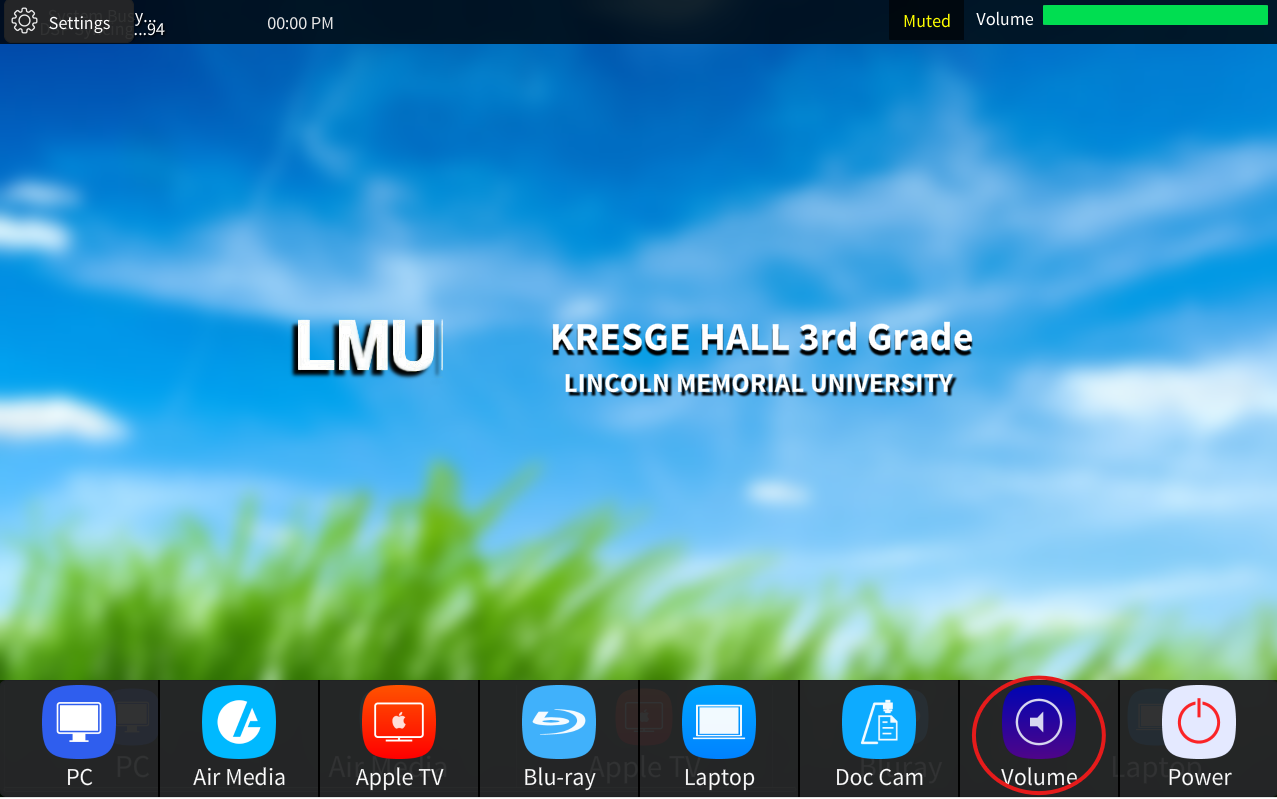
Once selected. This will take you to a page where all the audio options for the room will be listed. You can turn the corresponding volume up or down denuding on your needs. Please not the volume controls will be different for each room as each room as different technology. An Example is below:

Once down please use the power button located on the bottom right to shutdown the room.
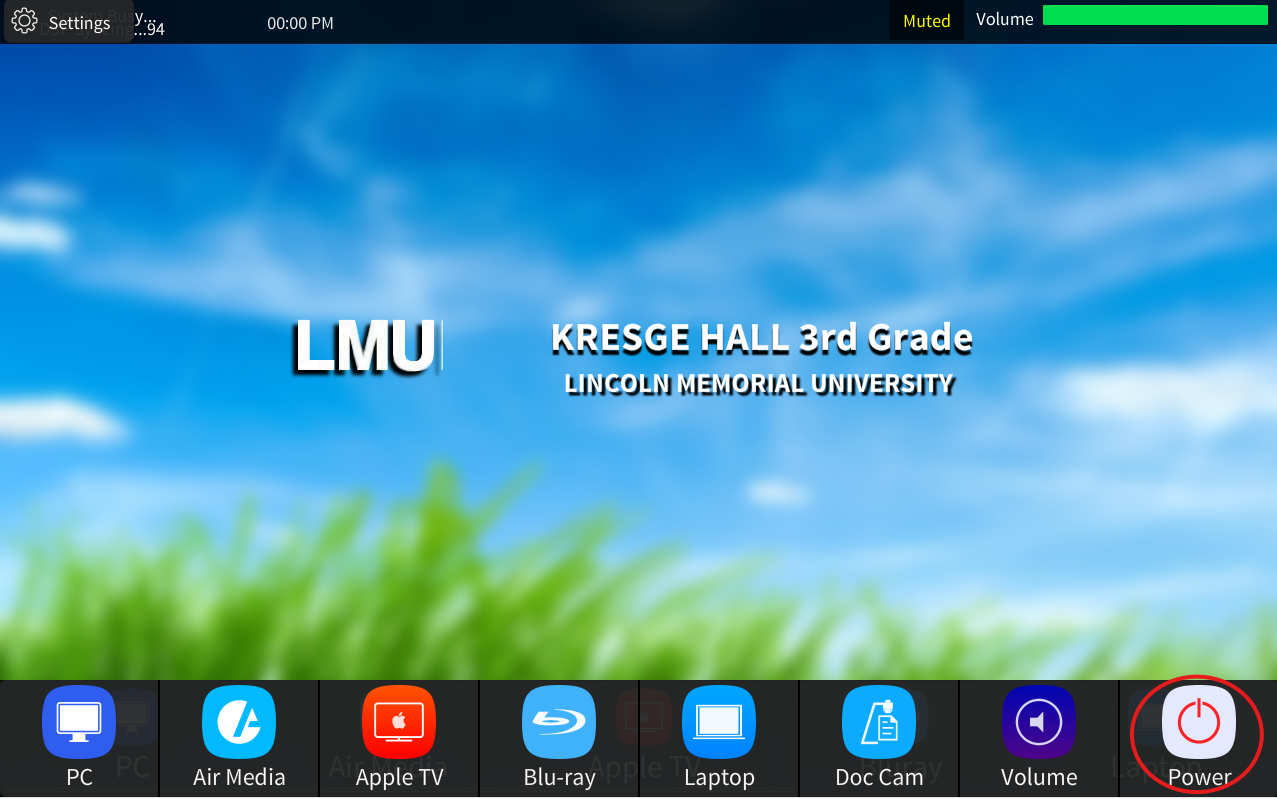
To turn the system on press and hold anywhere on the touch panel's home screen pictured below:

Then select the source you want to send to the screens from the bottom row of options:

Select "Laptop" to connect a Laptop to the screens via the provide wired connection.
Select "Smart Board" to route the rooms Smart Board to both screens.
Select "AirMedia" to send a device image wirelessly. Then follow the on screen instructions
You can adjust audio levels or mute mic by selecting the purple Audio icon shown below:

Once selected. This will take you to a page where all the audio options for the room will be listed. You can turn the corresponding volume up or down denuding on your needs. Please not the volume controls will be different for each room as each room as different technology. An Example is below:
Once down please use the power button located on the bottom right to shutdown the room.

