How to submit a Maintenance Request
- Navigate to www.lmunet.edu and click the “MyLMU” button in the top right of the page and log in to MyLMU with your LMU username/password.

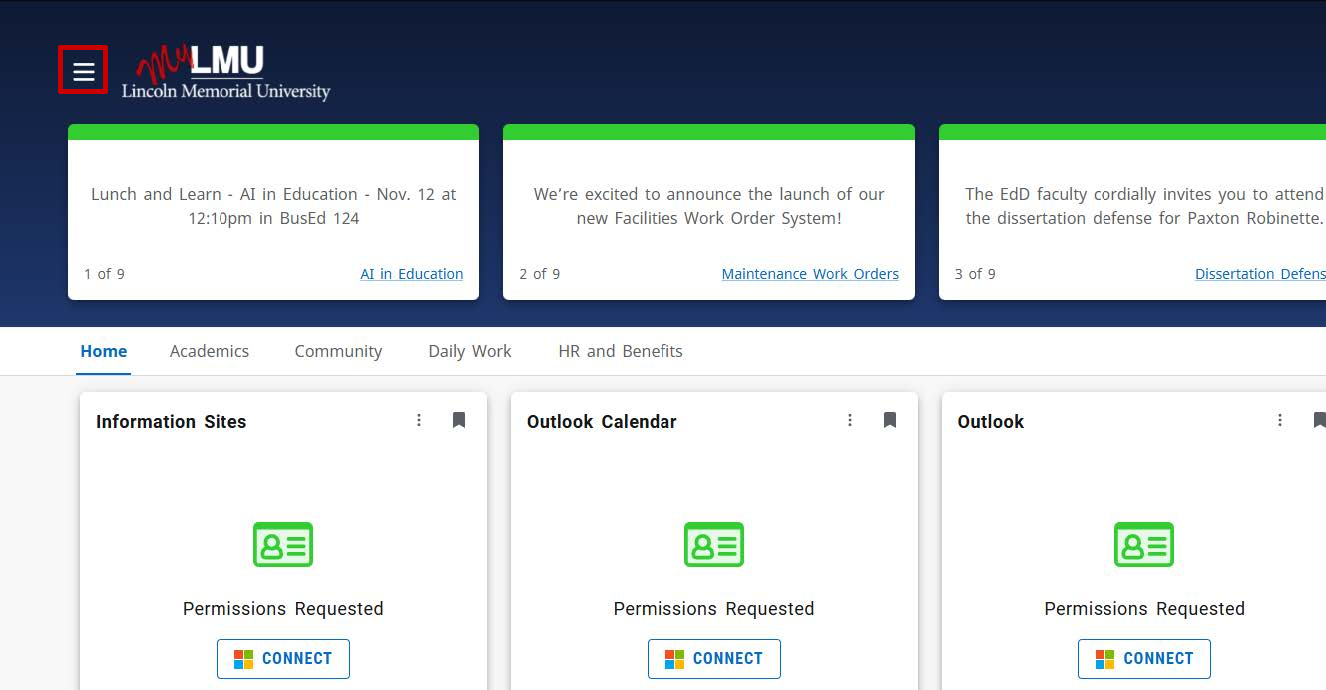
- From the main page, locate the “hamburger icon” in the top left corner of the page.
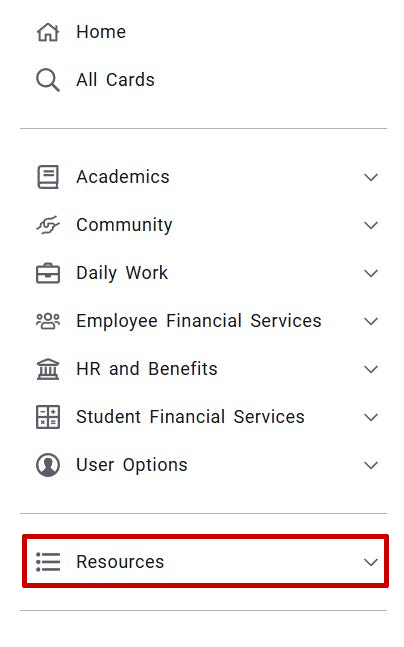
- From the menu, click on the “Resources” drop-down menu.
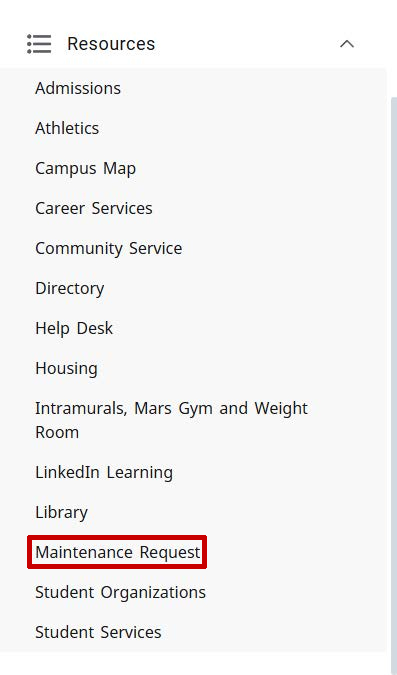
- Next, locate and click “Maintenance Request”.
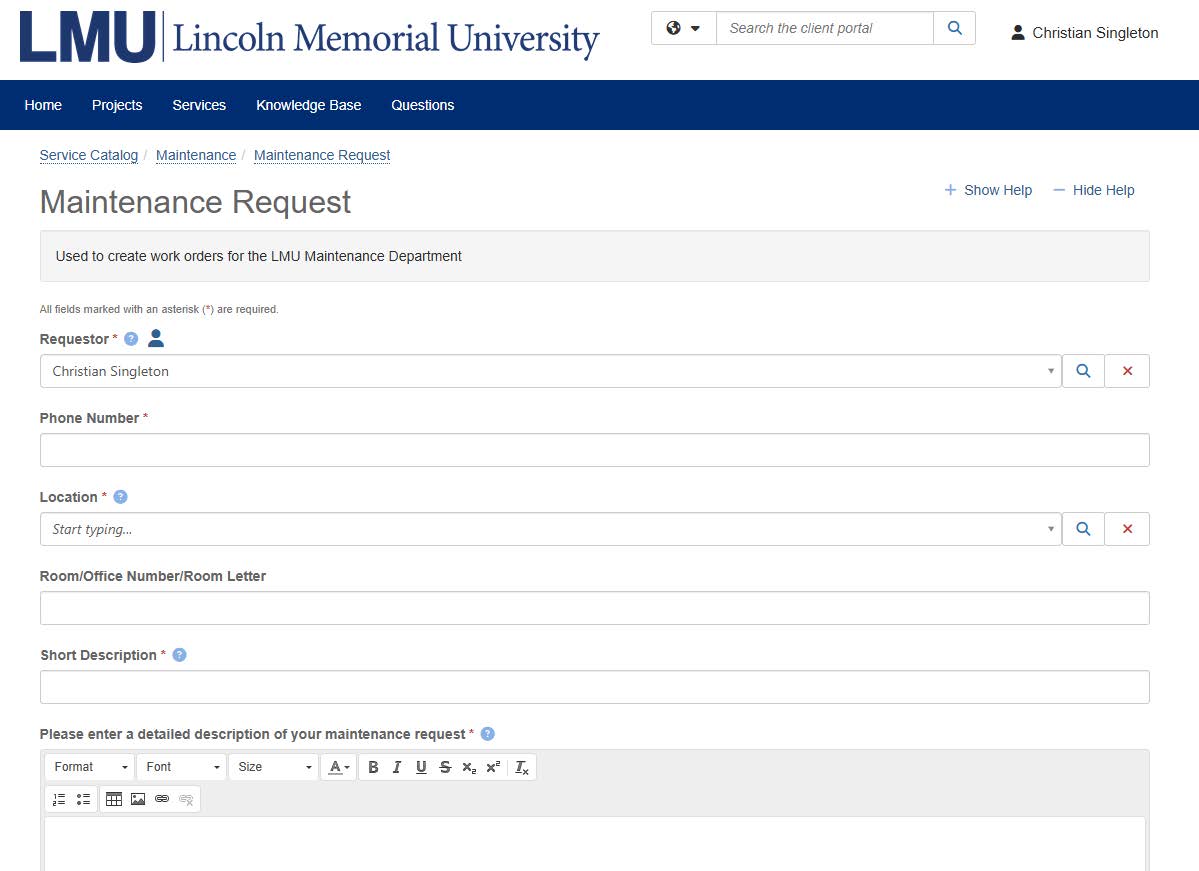
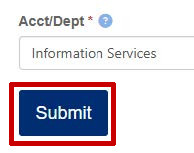
- Fill out the form with your request and then click the “Submit” button at the bottom of the page.
- You will receive an email notifying you that your request has been submitted.
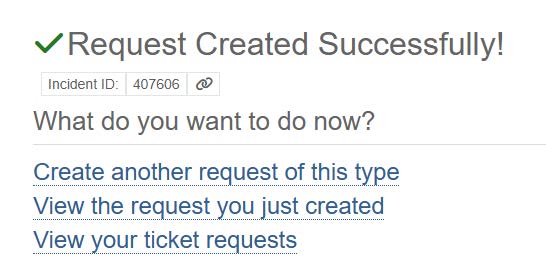
- From here you can create another request, view the ticket you just submitted on the Client Portal of TeamDynamix or view your other requests. The "Incident ID" of the ticket you just submitted will also be on screen. For example, the Incident ID of the ticket submitted above is “407606”.

